# Introduction
ProjectHax Bot
## Reporting Bugs / Questions
* Before posting a bug report please read the forum and make sure the bug has not already been reported by another user. Posting duplicate threads about the same problem will cause your thread to be deleted at some point.
* Be as descriptive as possible! Include what you were doing and what you observed when the bug occurred. The more information you give the more likely the problem will be solved.
* If you have a question, there is a dedicated forum section specifically for that.
* [All questions and bug reports can be found on the forum](https://forum.projecthax.com/)
## Account Sharing
You may share your phbot.org username and password with anyone as it is only use to login to the bot. The only way to change anything with your bot account is through email.
## [Manager](/manager)
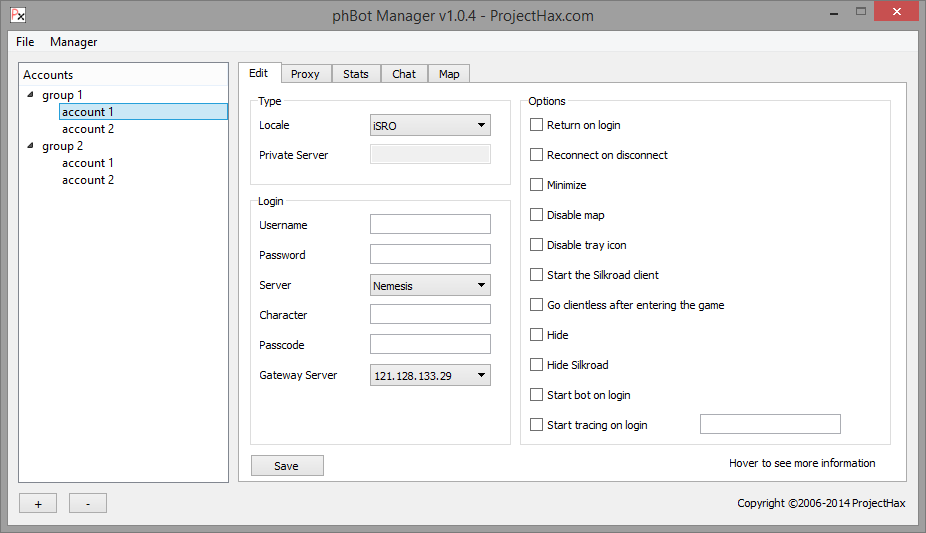
The bot Manager is a free application that allows you to manage and monitor multiple instances of phBot.
## Social Media
* [Twitter](https://twitter.com/projecthax)
* [Facebook](https://facebook.com/projecthax)
* [GitHub](https://github.com/projecthax)
* [Twitch](https://twitch.tv/projecthaxllc)
* [Discord](https://discord.com/invite/e97chmQ)
* [YouTube](https://youtube.com/@projecthaxllc)
## Features
This is a list of the most important features - not all features.
* **Multi-locale support**
* iSRO, kSRO, ruSRO, VTC, Gzone, vSRO 1.188/1.193/1.274 (and official vSRO 2 job / 3 job), thSRO, Black Rogue, ECSRO, RIGID, cSROR (official), and cSROR private servers.
* **macOS support via Wine**
* Starting the client through the bot also works through Wine.
* **Use on up to 3 computers at once**
* You are allowed to run as many characters as you like on up to 3 computers. For use on more than 3 computers you will need to use multiple ProjectHax accounts.
* **Fully functional clientless**
* Game does not even need to be installed to bot.
* New characters can be created through clientless login.
* It is also capable of going back to the client with two different methods: reconnect and use a return scroll/teleport.
* [**Account Sharing**](broken://pages/APSwjR83kyiGdgFhUOdB)
* Your ProjectHax account can be shared securely without fear of losing it.
* [**Command Line Arguments**](broken://pages/APSwjR83kyiGdgFhUOdB)
* Command Line Arguments allow you to automate certain startup tasks in the bot. For instance, you can have it login to the game and start botting by specify a few startup parameters.
* **Attacking, buffing, party buffing, resurrecting, weapon switching**
* The bot is able to detect your weapons automatically and switch to the correct one based on the skills you add. This includes resurrecting players with a different weapon.
* **Monster Luring**
* Luring monsters allows you to walk outside the training area to bring monsters into the attack area. A skill such as "Howling Shout" can be cast to bring monsters to you. This is perfect for botting an entire party.
* **Attack Log**
* The bot has a log of players that have recently attacked you. This can be useful when you are botting in the "Job Cave" area where there are Hunters and Thieves.
* **Player Gear Spy**
* On the "Players" tab is a complete list of a players items. It allows you to see their gear, avatar items, and if they have a "Devil's Spirit".
* **Comprehensive Pick Filter**
* A pick filter is a list of items that you can pick up, sell, store, or store guild.
* It allows you to pick up the items while training, sell them while in town, store them while in town, or store them in guild storage while in town.
* In the bot you can easily sort or search for the items relevent to you.
* **Alchemy**
* Alchemy can be a very time consuming process but important to do since it gives you an edge over other players.
* phBot has the ability to plus, use alchemic stones (blue stats), use attribute stones (white stats), and also dismantle items into elements.
* **Inventory**
* The bot allows you to look at your complete inventory (with icons!) as well as show stats of gear.
* **Stall**
* On town loop the bot is able to create a stall to sell items or put the items into consignment. This also allows you to re-open a stall if you disconnect.
* **Mastery / Stat Points**
* Skills and character masteries can be automatically leveled up while botting. Stat points can also be added without intervention.
* **Path Finding (auto walk) / Training Area**
* Path finding allows the bot to go to your training area without the use of a walk script (including caves). Scripts can still be used but are not required.
* Paths are created on town loop and can be edited after if you wish.
* Conditions can be set up to change the training area when you level up.
* **Chat**
* phBot supports chat completely; including sending global messages and sending/receiving notes.
* Players can be added to a block list if you do not wish to receive messages from them. In game chat gold spammers are mostly all blocked without you needing to do anything.
* **Monsters**
* Monster types can be ignored, preferred, or avoided. This can also be done by specific monster names.
* **Auto Buy**
* Town items such as HP, MP, and Vigor potions can all be purchased automatically when you start the bot in town.
* The bot supports buying all items from NPCs
# Purchasing
phBot time is currently **$1.00 USD** per week and can be purchased at [phBot.org](https://phbot.org/phbot/).
* Payment Methods
* Stripe (credit cards, Alipay, CashApp pay, Apple Pay)
* PayPal
* Bitcoin (through Paymentwall)
* Paymentwall (various methods available)
* Logging In
* Upon a successful payment you will receive a random username and password to login to the bot with.
A few days before your subscription expires you will receive an email detailing that it is expiring soon.
#### Free Trial
1. Download [phBot](/download).
2. Login to phBot between 12:00 AM -> 12:00 PM EST Monday night / Tuesday morning (after the Silkroad inspection) with the username "trial" and any password.
You have 12 hours to test the bot.
#### Resellers
There are a few resellers out there but please purchase directly whenever possible.
* Some resellers will give you a card ID and password to redeem on any phBot email that you wish. This method is preferred.
* Others will require you to give them your email so they can buy time on your account. This method is also safe.
Cards can be redeemed [here](https://phbot.org/phbot/redeem/).
# Download
## Download / Updating
Updates are generally downloaded by the bot on startup.
* [Stable](https://forum.projecthax.com/t/latest-stable-release/25)
* [Testing](https://forum.projecthax.com/t/latest-testing-release/24)
**What is the difference between stable and testing?**
Testing (beta) releases are put out whenever new features are added and are first put in the testing channel on Discord. The stable release is only for iSRO and gets minor updates.
***
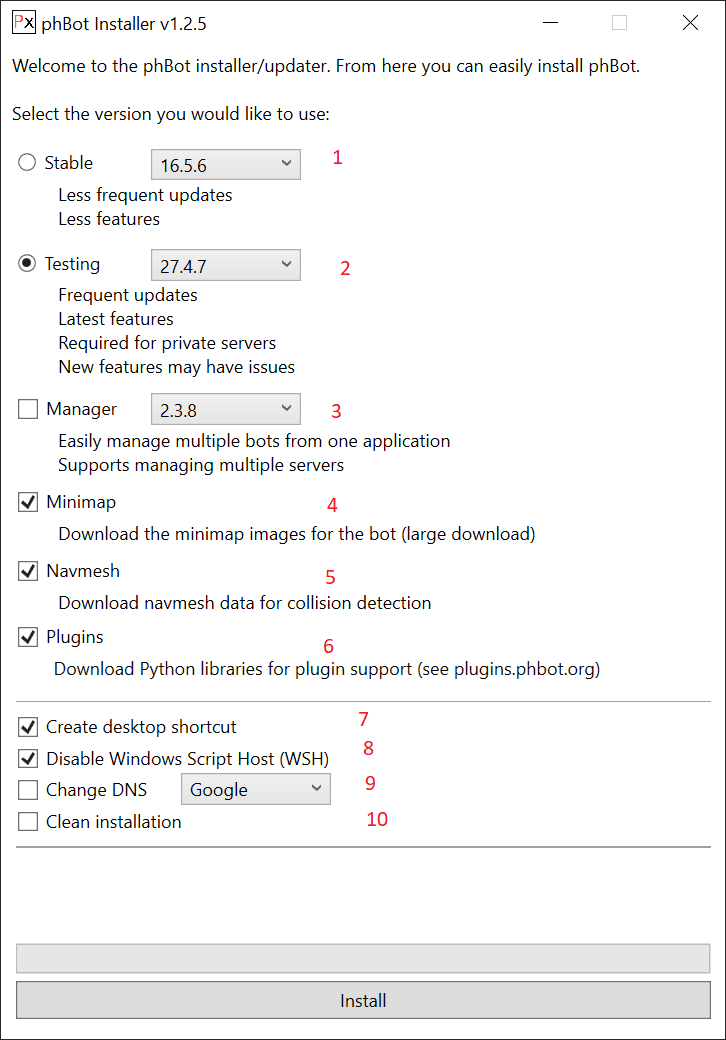
## Easy Installer
[**Download**](https://phbot.org/download/)
The installer is a simple application that will download all of the necessary files to run phBot. Everything gets installed to `%LOCALAPPDATA%\Programs`.
1. Stable release
* Install the stable release (infrequent releases)
2. Testing release
* Install the testing release (more features and what this guide is mostly based on)
3. Manager
* Include the Manager which allows you to manage multiple bots at once more easily.
4. Minimap
* Required for the map tab to display the minimap (includes cave maps).
5. Navmesh
* Required for collision detection and auto quest to function.
6. Plugins
* Plugins allow you to extend the bot with custom code. If you found a plugin you like, you will need this option in order to use it.
7. Create desktop shortcut
* Creates a shortcut to phBot and the Manager on your desktop.
8. Disable WSH
* Disables the Windows Script Host which prevents running malicious .js, .vbs, and .jse files.
9. Change DNS
* Allows you to change your DNS provider to Google, Cloudflare, or Quad9. ISP DNS servers are not always reliable and if you are having issues resolving hostnames this may solve that problem.
10. Clean install
* Deletes all phBot and Manager files before downloading them again. This option will wipe all your configs!
# Manager
[**Download**](https://forum.projecthax.com/t/manager-release/45/)
The Manager is a free utility to manage multiple instances of phBot. It allows you to hide/show bots, start botting, and it will restart them if they disconnect. It automates the command line arguments for you and much more.
# Supported Operating Systems
Supported Operating Systems
* Windows Vista (x86/x86-64) to Windows 11 (x86/x86-64)
* Arch, Ubuntu 20.04, Debian 10, and Fedora 33
* Any OS that supports Wine 1.9 or higher
Windows XP is no longer supported. If you are using Vista you should upgrade to at least Windows 7.
## Wine
**Linux**
It **might** be possible to install the VC++ 2013 redistributable binary but if not I've included the required DLLs below.
**You now need to override the MSVCR libraries inside Wine.**
1. `winecfg`
2. Libraries -> New override for library
3. Add `msvcr120.dll`, `msvcp120.dll`, and `vcomp120.dll`
4. OK
You should now not see any errors related to `moneypunct` when opening the bot or manager.
**Ubuntu**
1. Add the Wine PPA.
2. Install Wine.
[Click here (launches apt)](apt://winehq-devel)
3. Download the VC++ runtime libraries to your `phBot.exe` folder.
* [msvcr120.dll](http://cdn.phbot.org/msvcr120.dll)
* [msvcp120.dll](http://cdn.phbot.org/msvcp120.dll)
* [vcomp120.dll](http://cdn.phbot.org/vcomp120.dll)
4. Start the bot.
`wine phBot.exe`
**Debian**
1. Install Wine.
`apt-get install wine-development`
2. Download the VC++ runtime libraries to your `phBot.exe` folder.
* [msvcr120.dll](http://cdn.phbot.org/msvcr120.dll)
* [msvcp120.dll](http://cdn.phbot.org/msvcp120.dll)
* [vcomp120.dll](http://cdn.phbot.org/vcomp120.dll)
3. Start the bot.
`wine phBot.exe`
**Arch**
1. Install Wine.
`sudo pacman -S wine`
2. Download the VC++ runtime libraries to your `phBot.exe` folder.
* [msvcr120.dll](http://cdn.phbot.org/msvcr120.dll)
* [msvcp120.dll](http://cdn.phbot.org/msvcp120.dll)
* [vcomp120.dll](http://cdn.phbot.org/vcomp120.dll)
3. Start the bot.
`wine phBot.exe`
**Fedora**
1. Install Wine.
`sudo yum install wine`
2. Download the VC++ runtime libraries to your `phBot.exe` folder.
* [msvcr120.dll](http://cdn.phbot.org/msvcr120.dll)
* [msvcp120.dll](http://cdn.phbot.org/msvcp120.dll)
* [vcomp120.dll](http://cdn.phbot.org/vcomp120.dll)
3. Start the bot.
`wine phBot.exe`
**macOS**
1. Download Wine Bottler
* The stable release of Wine Bottler should work fine but if not use the development release.
* [Wine Bottler](http://winebottler.kronenberg.org/)
2. Download the VC++ runtime libraries to your `phBot.exe` folder.
* [msvcr120.dll](http://cdn.phbot.org/msvcr120.dll)
* [msvcp120.dll](http://cdn.phbot.org/msvcp120.dll)
* [vcomp120.dll](http://cdn.phbot.org/vcomp120.dll)
3. Double clicking `phBot.exe` should start the bot.
# Command Line
Command line arguments for phBot
Here is a list of arguments that phBot supports. The [Manager](broken://pages/APSwjR83kyiGdgFhUOdB) can automate all of this for free if you do not wish to use batch files/shortcuts.
```
--username arg Silkroad username
--password arg Silkroad password
--server arg Silkroad server
--character arg Silkroad character
--passcode arg Silkroad secondary passcode
--startbot Start bot on login
--relogdc Relog if you disconnect
--returntotown Use return scroll once you login
--locale arg Silkroad locale (isro, silkroadr, csro-silkroadr, or private-server)
--minimize Minimize the bot
--disablemap Disable the Silkroad map
--bindip arg Bind address
--loginserver arg iSRO/SilkroadR login server (requires full IP)
--proxyip arg SOCKS proxy IP
--proxyport arg SOCKS proxy port
--proxyuser arg SOCKS username
--proxypass arg SOCKS password
--disabletray Disables minimizing to the system tray
--logsize arg Sets the maximum log file size for deleting (in
bytes)
--skipupdates Skip all automatic updates
--update Update the bot with no user interaction
--wine Specify if using Wine on *nix and automatic detection
fails
--client Starts the client
--clientless Go clientless after getting in game (useful for
certain vSRO servers)
--hide Hide the bot on startup
--hideclient Hide the client after it loads
--privateserver arg Private server name
--white Disables the dark theme
--starttrace Starts tracing a player on login
--tracename arg Trace player name
--fontsize arg Font size
--force-inject Force using phBot.dll
--minidump Enables minidump crash files
--silkroadr-channel arg iSRO/SilkroadR login channel (joymax or jcplanet)
--profile arg Config profile name
```
# phBot.ini
Configurable options in phBot.ini
The `phBot.ini` file is located in the same folder as the `phBot.exe` file. It contains global configuration settings for all characters that you open.
***
**Username**
ProjectHax login username.
**Password**
ProjectHax login password.
**UpdateSkip**
Skips a specific bot version. Once a new version is released you will be asked to update again.
**BindIP**
Binds outgoing Joymax connections to a specific IP address.
**white**
Disables the dark theme when set to `1`.
**iSRO\_Gateway**
Sets the iSRO gateway server to use. It can also be set to `Random` to use a random server.
**SilkroadR\_Gateway**
Sets the SilkroadR gateway server to use. It can also be set to `Random` to use a random server.
**X-Trap**
Sets the X-Trap server to use. Can be set to `server` to use ProjectHax or an IP address if you wish to run your own server on your own machine or in a virtual machine.
**SilkroadServer**
Sets the last clientless logged into Silkroad server name.
**Language**
Sets the bot language. The default is `en`.
**SwitchGatewayAttempts**
Sets the value for switching the gateway server after a certain number of failed login attempts.
**iSROPath**
iSRO game path.
**SilkroadRPath**
SilkroadR game path.
**cSRORPath**
Official cSRO SilkroadR game path.
**SocksIP**
SOCKS IP or hostname.
**SocksPort**
SOCKS port.
**SocksUser**
SOCKS username. Only used with SOCKS v5.
**SocksPass**
SOCKS password. Only used with SOCKS v5.
**SocksVersion**
SOCKS version. `4` or `5`.
**ReduceSilkroad**
Reduce Silkroad memory usage by periodically emptying the processes working set.
**Title**
Changes the phBot window title. The default is `phBot v%0 - %1 - %2`.
**Passcode**
Sets the default passcode for iSRO for easier login.
**DisableTray**
Can be set to `1` to disable the tray icon. This does the same thing as the `--disabletray` command line argument.
**AllowXTrap**
Allows X-Trap to run on servers that would normally disconnect you if X-Trap is disabled.
# Initial Startup
## Logging In
At first launch you will be asked to login to the bot using your ProjectHax username and password.
Enter your login details and click "Login". You will now logged into the bot if you have time on your account. This information is saved in `phBot.ini` so you will not need to enter it again.
You can change the language and theme in the top right corner of this tab. It will require you to restart the bot for the changes to take effect.
### Reset Hardware ID
Each ProjectHax account has three hardware IDs. They automatically reset at 00:00 UTC every single day. If you change your hardware you may get a message in the bot saying that three hardware IDs have been used. To mitigate this issue, you may reset them once per day, manually.
[Click here to reset hardware IDs](https://phbot.org/reset/hwid/)
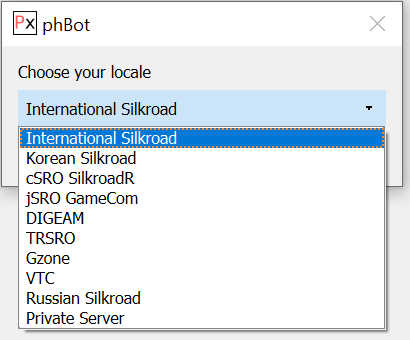
### Choose Locale
Directly after logging in, a dialog will appear asking you to select your locale. Three options can be chosen.
1. International Silkroad
* Including merged SilkroadR servers
2. Korean Silkroad
3. cSRO SilkroadR (official)
4. jSRO GameCom
5. DIGEAM
6. TRSRO
7. Gzone
8. VTC
9. Russian Silkroad
10. Private Server
* vSRO 1.188/1.193/1.274, thSRO, Black Rogue, ECSRO, and cSRO SilkroadR are all supported.
* iSRO private servers are supported (RIGID).
Selecting "Private Server" will bring up another dialog asking for more information. You only need to do this if you plan on playing on a Silkroad private server. iSRO and SilkroadR are completely separate from this.
1. List of private servers you have added
2. Name
* This field allows you to give the private server a name that will show up in the bot. It does not affect anything else.
3. Division
* Silkroad game division. Certain locales have multiple divisions but use the same Silkroad.exe launcher.
4. Hosts
* A list of gateway servers. It will be automatically populated after selecting the game path.
5. Version
* Game version
6. Servers
* A list of Silkroad servers that show up after you launch the game. You will need to manually add them to the list.
7. Captcha
* Some private servers have a static captcha character (or no character). This allows you to specify the captcha character to be sent automatically.
8. Path
* Silkroad game path. Instead of selecting the path when you click "Launch Client", you must select it here so the server data can be saved for later use.
9. Type
* This is the vSRO server type. vSRO is separated into several variants such as Black Rogue, thSRO, v1.193, and v1.274. Unfortunately, there isn't a good way to detect the server type automatically, so you must do this on your own. If you do not select the correct type you will have packet parsing errors when you get in game.
* You do not need to select any options here for cSRO SilkroadR private servers / vSRO 2 job / iSRO private servers.
## Launch Game
Launching the client will start the Silkroad game and allow you to login as normal.
1. Start by clicking "Launch Client".
2.
```
```
3. You will be asked to set the path for the game. This is so it knows how to start Silkroad. You will only need to do this once per game (iSRO/SilkroadR/private server).
4. Navigate to your Silkroad folder and click "Select Folder".
5. The game will now start and you can login as normal.
## Clientless Login
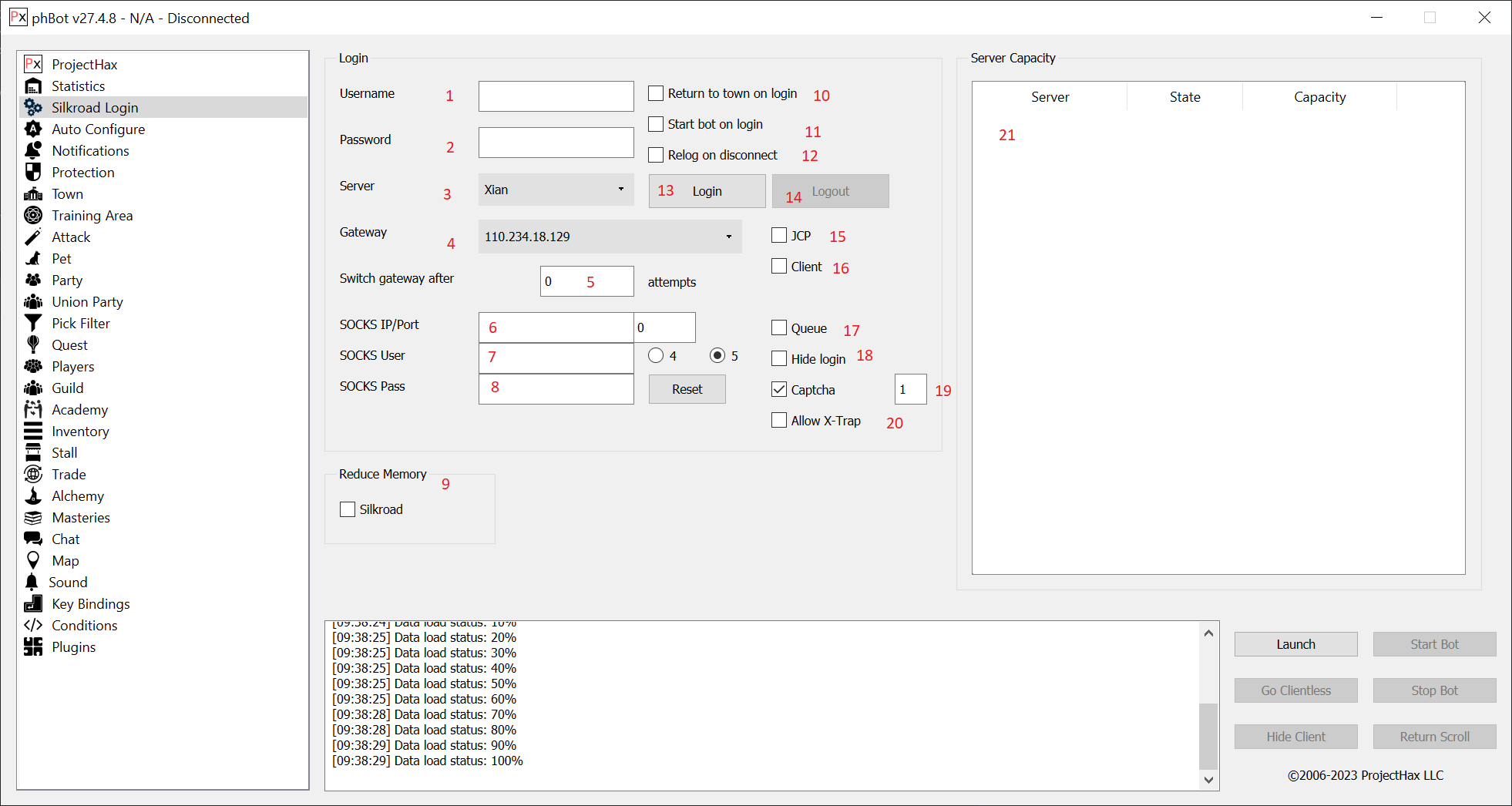
First, I should start by explaining what "clientless" actually is. Client-less means that the Silkroad game doesn't need to be running while you are using the bot. It uses less resources than the game so you can run more characters. phBot gives you the option to login either with the game or without it. For client login see [Launch Game](broken://pages/APSwjR83kyiGdgFhUOdB).
You will need to have the game installed so the bot can generate a database containing data from the games `Media.pk2` and `Data.pk2` files. After that, you may copy the `iSRO.db3` and `SilkroadR.db3` files to a VPS and launch the bot. If the game updates, you'll need to copy the newly generated databases to the VPS.
1. Username
* This is the username you use to login to the game.
2. Password
* This is the password you use to login to the game.
3. Server
* Silkroad server name.
4. Gateway Server
* The Silkroad server you are playing on may have multiple IP addresses. This box can be used to select a gateway server that has less traffic or if one goes down to choose another working one.
5. Switch gateway after X attempts
* Change the gateway server after X failed connection attempts.
6. SOCKS IP/Port
* SOCKS is a proxy protocol. If you have a SOCKS proxy server you can have the bot use it to login to the game. This can be used to bypass IP limits on private servers.
* Only SOCKS v5 is supported.
7. SOCKS Username
8. SOCKS Password
9. Reduce Memory
* This feature allows you to lower the memory usage of Silkroad. Do NOT enable it unless you know what you are doing! It can cause performance issues and possibly crash the game.
10. Return to town on login
* Use a return scroll after loading into the game
11. Start bot on login
* Start botting on login. This should be used with the "Relog on disconnect" feature
12. Relog on disconnect
* If you disconnect from the game server, reconnect.
13. Login
* After you enter your Silkroad login details, click this button to start logging into Silkroad without using the client.
14. Logout
* After you get in game with clientless this button will be enabled. It allows you to logout of the game.
15. JCP
* Allows you to login to iSRO with a JC Planet account.
* You must check this box if you're logging into the game with your email address.
16. Client
* Starts the client with clientless login. This is different from launching the client and typing in your account info.
17. Queue
* Prevents multiple bots from logging into the game at one time.
* Only allows one bot to connect to the server to prevent temporary IP bans on iSRO.
18. Hide login
* Hides your Silkroad login details. This mainly for streamers.
19. Captcha
* Allow the bot to automatically resolve the captcha on its own.
20. Allow X-Trap
* Allows X-Trap to run on servers that would normally disconnect you if X-Trap is disabled.
21. Server Capacity
* Once you connect to the gateway server this will be populated with a list of servers and their capacities.
## Go Client / Go Clientless
Depending on what state the game is in, you will either see "Go Client" or "Go Clientless". If the game is not running or has crashed you will see "Go Client" otherwise the button will show "Go Clientless". If it is greyed out then you have not logged into Silkroad yet.
### **Go Clientless**
* After clicking this, the game client will be terminated.
* You will still be in game until you close the bot.
### **Go Client**
* Clicking this button will allow you to start the client without needing to exit or restart the bot.
* `Return/Teleport` will use a return scroll or a nearby teleporter after starting the game. This is required because the client has to sync up at a teleport.
* `Reconnect` will disconnect, start the game, and log you back in at the position you left off at in the game.
# Auto Configure
The "Auto Configure" tab allows you to easily get your character up and running by configuring most bot settings with sane defaults. It may add conflicting attack skills so please verify that it added the correct ones. You will still need to configure the "Training Area", "Town", and "Pick Filter" settings.
How it works should be self explanatory. For Chinese characters: select your build from the list and your weapon. For European characters: select your primary and secondary weapon types. Skills will be added based on what options you select.
#### Profiles
Profiles allow you to create multiple configurations for a character.
1. Profile
* Allows you to select a profile.
2. New
* Creates a new profile for the current character.
3. Rename
* Renames the currently selected profile.
4. Delete
* Deletes the current profile.
5. Auto configure before each town loop
* Run auto configure before the town loop.
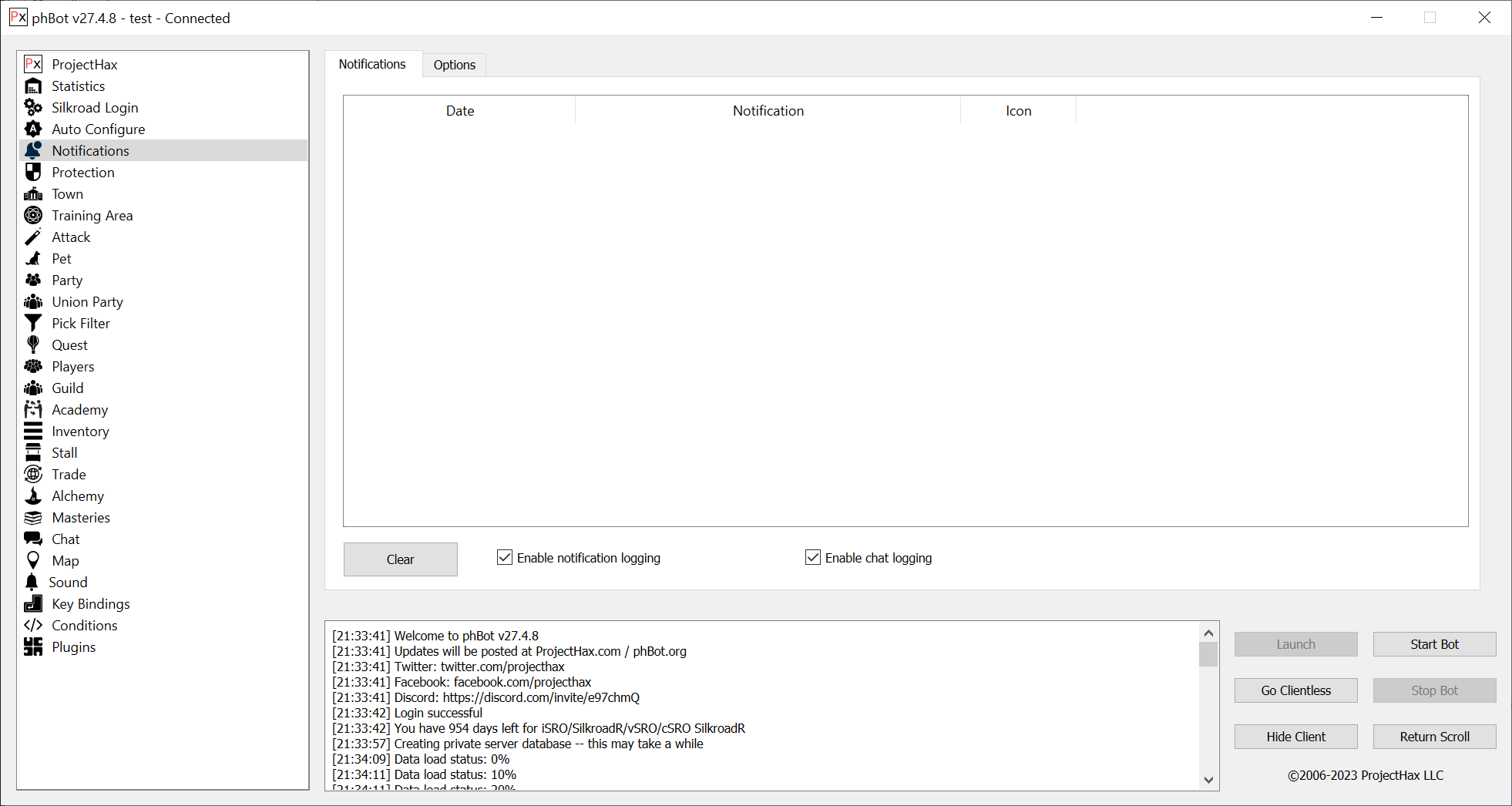
# Notifications
The "Notifications" tab shows you important information such as:
* Rare item has been picked
* Quest has been disabled
* GM has spawned near you
* Another player attacks you
* You die by a monster
This feature can be resource intensive so it should be turned off if you are experiencing lag. Some notifications will appear down by the tray icon when phBot is minimized.
# Protection
The "Protection" tab contains your auto potion settings, return options, and monster attack preferences.
## Potions
To enable the potion type, check the box. Potions are used when your HP/MP stats drop below a percentage that you have set.
## Return
The "Return" tab sets the options for returning to town.
1. HP potions <= X
* Return to town when you have less than a certain amount of HP potions.
2. <= 5 MP potions left
* Return when you have <= 5 MP potions in your inventory.
3. Out of universal pills
* Return when you have no more Universal Pills in your inventory.
4. Out of vigors
* Return when you are out of Vigor potions.
5. Out of arrows/bolts
* Return when you have no more arrows or bolts in your inventory.
* The bot will count arrows for Chinese characters and Bolts for European characters if you have a Bow / Crossbow.
6. Out of speed scrolls
* Return when you are out of movement speed scrolls.
7. Inventory is full
* This option will return when you have 2 free slots empty.
* It should be enabled so you always have room to pick up item drops and can also still switch weapons.
8. Weapon durability
* Returns when the weapons durability is less than 4.
9. Shield durability
* Returns when the shield durability is less than 4.
10. Armor durability
* Returns when any armor durability is less than 4.
11. Union Party Tickets
* Return when out of union party tickets.
12. Energy of Life
* Returns when out of Energy of Life items.
13. Return X minutes before the next hour
* This option can be used to return for certain in game events.
14. Return every X minutes
* This option can be used for Bards or Clerics that rarely return to town.
15. Return at ... every day
* This option can be used to get the Genie Lamp quest every day.
16. Return/disconnect ... minutes
* This option will return to town and disconnect every set minutes. It can be used to refresh the grey bar experience a certain number of times.
17. Styria
* Return for Styria.
* You must have the `styria` command in your script for it to register. The `styria` command is specifically tuned for iSRO/SilkroadR and will not work on private servers that have it at a different time. You can still register for Styria through the map tab though.
18. Return if less than X players are in the party
* Returns to town when the party does not have the set number of players.
19. Disconnect every X minutes
* This option will disconnect after being in game for X amount of minutes.
20. Reset play time (VTC)
* This option is for VTC only and will use the Silk mall to reset your play time so the character can gain EXP again.
21. Dead
* Return to town when dead.
22. Not resurrected within X minute(s)
* Waits for someone to resurrect you and then returns to town.
23. Return immediately if dead outside of the training area
* Instead of waiting, it will return immediately if you aren't inside the training area.
24. Use resurrection scroll
* Uses a resurrection scroll, if you have one, instead of returning to town.
25. Not attacked within X minute(s)
* Return to town if you are not attacked by a monster within a specified amount of time.
26. Unique spawns near you
* Return when a unique spawns near you.
27. Job transport dies
* Use a return scroll when the job transport dies.
* This is useful when doing job quests that require a transport.
28. Pink status
* Return if your character has pink murder status.
29. Murder status
* Disconnects if your character has murder status.
30. Change primary weapon if broken
* Switches the primary weapon to the same item type if it breaks instead of returning to town on weapon durability.
## Sockets
Use gear socket skills.
## Pet Return
Pet return options.
1. Pet recovery kits
* Return when out of recovery kits (fellow pet)
2. Pet revive
* Return when out of pet revive items
3. Pet feed
* Return when out of feed items
4. Abnormal state
* Return when out of abnormal state potions for the pet
5. Transport recovery kits
* Return when out of transport recovery kits (wolf pet)
6. Pick pet full
* Return when the pick pet is full
## Berserk
The "Berserk" tab allows you to set preferences for berserk.
## **Berserk**
These options control berserk for when the bot attacks a specific monster type, more than a certain number of monsters are attacking you, or while executing the script.
## Monster Preferences
"Monster Preferences" allow you to prefer one monster type or name over another.
1. List of your preferences
* Right click on the window to add or change preferences.
2. Switch monster based on position in the list
* If the bot is attacking a monster, switch to a more preferred monster based on its position in the list.
3. Up and down buttons
* Select a preference from the list on the left and use the arrows to change their positions.
* Monsters will be selected based on their position in the list. The higher the monster type or name is, the more of a priority it will be.
Selecting the "type" option gives you the ability to prefer a monster based on its type (eg. General, Champion, Giant, etc.).
Selecting the "name" option gives you the ability to prefer a monster based on its name (eg. Mangyang, Tiger, Chakji, etc.). This feature uses monster IDs which allows you to prefer an exact monster.
1. Search results
* Right click on the window to add a monster to the preferences.
2. Search box
* Enter in a monster name and the bot will look for it.
3. Search button
* After entering the monster name you can either hit enter or click this button to search for the monster.
4. Add
* Right click on the monster and click add to add the monster to the preferences list.
## Devil's Spirit
Uses Devil's Spirit / Angel's Spirit depending on the options selected.
## Scrolls
The scrolls tab will allow you to select which scrolls should be automatically used by the bot. Scrolls are used while not botting, botting, and tracing unless otherwise set.
## Stats
The stats tab allows you to increase your Str/Int stat points and configure automatic stat point adding.
1. Allows you to manually increase your stat points
2. Enables automatic stat points
3. Set the number of stats to add for each level up
## Misc.
Additional miscellaneous options.
1. Stop bot when you die > X
* Completely stop botting if you die more than a specified amount of times.
2. Stop if you die by a Statue of Justice
* Joymax placed Statue's of Justice outside towns to kill botters but they removed them shortly after. This option is not necessary anymore.
3. Stop bot at 50% EXP (SilkroadR)
* SilkroadR has a bar in the game that only allows you to gain EXP for a certain amount of time. The value starts at `100%` -> `50%` -> `0%`.
4. Stop bot at 0% EXP (SilkroadR)
* Similar to #7. SilkroadR has a bar in the game that only allows you to gain EXP for a certain amount of time. After which, the bar turns grey and you do not gain anymore EXP.
5. Remove berserk from the game
* Sometimes iSRO/SilkroadR will crash when someone uses berserk. This will disable the berserk animation and prevent the game from crashing.
* This bug may have been fixed but there isn't really a way to know.
6. Remove invisible from the game
* Allows you to see invisible players in the game.
* iSRO/SilkroadR no longer send movement packets for invisible players so this option is useless there. However, on vSRO private servers it should still work fine.
7. Re-spawn the job transport if it dies
* If the job transport dies, respawn it.
* There is also an option to return when the job transport dies (on the Return tab).
8. Disconnect if a GM spawns
* If the bot detects a GM in game, it has the ability to disconnect.
9. Disconnect if a player attacks you while botting.
10. Stop if a thief player is found in town
* This is useful if you are using the auto trade feature.
11. Only repair equipped items
* Normally the bot will repair all inventory items - even those that are not equipped. With this option, the bot will only repair the items that are equipped.
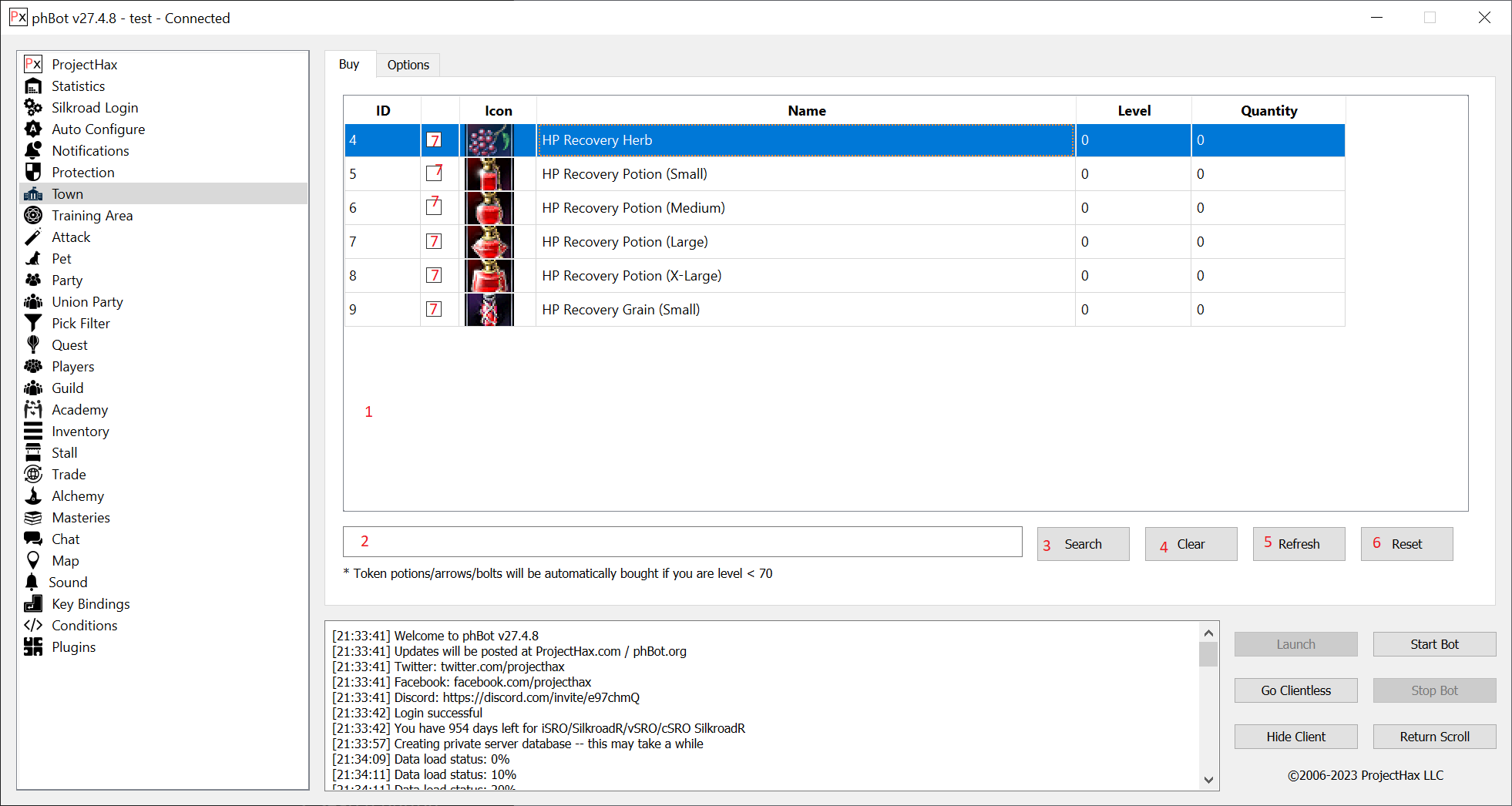
# Town
The "Town" tab allows you to setup item buying on loop.
1. This is the area where town items will appear.
2. Search box
* Type the item name you are looking to buy and press enter.
3. Search button
* After typing the item name you can either press enter or click this button to search for items.
4. Clear button
* Clears the window and frees up some memory.
5. Refresh button
* Shows you all NPC items that can be purchased.
6. Reset button
* Resets all of your town buy settings.
7. Enables buying the item.
8. Skip guild storage if a guild member is nearby
* Only one person can access guild storage at a time. This option will skip guild storage if another guild member is nearby.
* After you have found the item you would like to edit, double click on the "Quantity" area to change the quantity and then mark the box next to the icon to enable it. This way is much better than having a bunch of combo boxes because you can set it to buy any item in any supported NPC.
* The free low level potions will be sold automatically so they can be re-bought to get a full stack.
***
1. Skip guild storage if a guild member is nearby
* This option will not try to enter guild storage if another guild member is nearby.
2. Guild storage enter retry
* Occasionally a game bug will occur where another member is stuck in guild storage. This value is the number of times to retry when that occurs.
3. Stop bot if the inventory is full when buying items
4. Do not cast speed or noise during the script
* This option will disable the default behavior of automatically casting moving speed and noise if available.
5. Sell excess potions
* Sells potions/arrows/bolts that are in excess of the amount set to buy
6. Drop items in town
* Items that are set to "Drop" in the pick filter will drop in town
7. Do not use low level town scripts
* This option can be used on iSRO based servers to disable using the `_r.txt` scripts where they do not have the free town NPCs or token items
# Training Area
## Script
**Add Training Area**
Adding a new training area is relatively simple. This method does not require a script because it uses path finding.
1. Right click on the Training Area list.
2. Click "Add".
3. Give it a name.
4. You will now see it appear in the list.
5. Click "Get Position" to get your characters current coordinates.
* To edit the "Radius" or "Pick Radius", simply double click on the values.
* For more options right click on your training area.
1. Add
* Adds a new training area.
2. Enable
* Enables the training area.
3. Walk
* Walks to the training area coordinates. The walk button will turn to "Stop" after choosing this option.
4. Set Coordinates
* Allows you specify coordinates for the training area.
5. Set Polygon
* Allows you to set a polygon for the training area. This is only used when copying a polygon from another bot. You will still need to set the training coordinates if using a polygon.
6. Use Radius
* Use a simple radius for the attack area.
7. Use polygon
* Use a polygon for the attack area. If choosing this option, you must draw a polygon on the map tab or set one by choosing "Set polygon".
8. Copy Coordinates
* Copies the training area coordinates to the clipboard.
9. Copy Polygon
* Copies the polygon data to the clipboard.
10. Change Script
* Allows you to set a walk script for the training area.
11. Choose Monster
* Allows you to choose a monster close to your level for the training area.
12. Edit Script
* Opens the script creator and lets you edit the walk script for this training area.
13. Reload
* Reloads the script from disk.
14. Clear
* Clears the script from memory.
15. Delete
* Deletes the training area.
**Create Walk Script**
A script is essentially a path that the bot will follow after completing the town loop. Scripts are very simple to create just make sure your first click is in the town spawn area otherwise bad things will happen!
1. Click "Create". This will bring up a new dialog that will allow you to record a script as well as add custom commands to it.
2. Click "Record". This will begin logging your characters movements as well as add "wait" commands after a teleport.
3. When you have finished recording your script, click "Stop" and "Save As".
4. Save your script and close the "Script Creator".
5. Right click on your training area and click "Change Script".
6. Choose the script you just created and you are done.
## Conditions
Training Area Conditions allow you to change the current Training Area to another when your character reaches a specific level that you set. This tab is easy to understand by following the dialogs that show up when you right click in the list and go to "Add".
## Collision
[Download](https://forum.projecthax.com/t/latest-testing-release/24)
Collision detection allows the bot to navigate around obstacles to get to monsters and walk to nearby NPCs. These options can be resources intensive.
Occasionally there will be navmesh updates which require you to re-run the Easy Installer or download and extract the ZIP from the latest release thread on the forum.
1. Enable collision detection in the training area
* Allows the bot to ignore monsters and items that are behind obstacles.
* Requires you to download the navmesh data. It is linked in the release thread.
2. Navigate around obstacles
* Allows the bot to navigate around obstacles to get to monsters.
3. Navigate to item drops
* Uses path finding to get to items that dropped behind an obstacle.
4. Disable Samarkand
* Disables teleporting to Samarkand (useful on servers that do not have Samarkand enabled)
5. Disable Alexandria
* Disables teleporting to Alexandria (useful on servers that do not have Alexandria enabled)
6. Disable Guide/Advice NPCs
* Disables using Guide teleporter NPCs in towns
7. Ignore teleport level
* Allows the bot to teleport to an area above the characters level (useful if the teleporters level isn't correct)
## Settings
1. Don't walk around
* By default the bot will randomly walk around in your training area. This option will disable that.
2. Use Treasure Boxes
* Use Treasure Box NPCs in the Jangan cave.
3. Use Easter Egg Event NPCs
* This option allows you to use the Easter Egg NPCs when the Easter event is active.
4. Equip better items
* Equips better items that have been picked up. This should not be used on high level characters where gear is important.
5. Summon flowers in the training area
* Flowers are buff monsters that can be summoned.
6. Use a repair hammer
* Instead of returning on durability, the bot can use a repair hammer if you have one.
7. Use berserker regeneration potions
* If your berserk is not full, the bot can use a berserker regen potion to regenerate your berserk.
8. Use Energy of Life potions
* Energy of Life potions extend berserk or can completely regenerate your berserk just like a berserker regeneration potion except they can be purchased in an NPC.
9. Use Energy of Life berserk regeneration
* Uses Energy of Life items.
* The berserk restoration is used based on your berserk options; otherwise just the Energy of Life item is used.
10. Use a reverse return scroll when you die
* After completing the town loop the bot will use a reverse return to get back to your training area.
* Requires that you die while the bot was started. If you restart the bot it will not use it.
11. Use a reverse return scroll after returning to town
* Same as #15 except it will also use reverse if you used a return scroll to get back to town.
12. Use monster summon scrolls & Pandora's Box in the training area
* Uses monster summon scrolls in the training area
13. Wait for all strong monsters to be killed before summoning another
* To prevent your character or party from dying, the bot can wait for the strong monsters that spawn from summon scrolls to die before using another scroll.
14. Use speed drugs
* Use movement speed drugs
15. Only use speed drugs in the script
* This option can be used if you have a Bard in your party casting a speed buff. It can save some gold.
## Script
1. Skip town script entirely
* Skips doing the town script and immediately goes to the training area.
2. Continue town scripts
* If you disconnect halfway through your town script the bot can continue it by enabling this option.
3. Return when can't continue script
* Uses a return scroll if the script cannot be continued
4. Avoid Statue of Justice in the script
* Uses path finding to navigate around Statue's of Justice when walking to the training area.
5. Script walk delay X milliseconds
* Adds a delay to each walk command. This can be useful if your character is getting stuck some of the time.
6. Go back a coordinate if stuck after X seconds
* Walks back to the previous coordinate if the character has not been able to move.
7. Return if stuck in script after X seconds
* Uses a return scroll if the character has been stuck for the specified number of seconds.
8. Ride fellow pet to training area
* Ride the fellow pet to the training area
9. Remount in caves
* Remount the fellow pet after entering the cave. It is not possible to enter a cave when a pet is mounted so it must be dismounted first.
10. Use town NPC teleport for last recall
* Uses the Guide/Advice NPCs in towns to go back to the training area if a return scroll was used there.
11. Use town NPC teleporter for last death
* Uses the Guide/Advice NPCs in town to go back to the training area if the character died there.
# Script Commands
All commands are case sensitive and the parameters must be separated by commas.
***
#### walk
This command causes the bot to make the character walk to a set of coordinates.
Parameters
* `region` (optional)
* Caves use a different coordinate system which is what this first parameter is for. It is not required anywhere but caves.
* `x`
* In game X coordinate.
* `y`
* In game Y coordinate.
* `z`
* In game Z coordinate. This value can be set to 0 and it will not affect anything.
Example
* `walk,6400,800,0` (outside cave)
* `walk,32775,-23232,-302,-76` (in cave)
#### teleport
This command uses an in game teleporter.
Parameters
* `source name`
* Source NPC name or region name.
* `destination name`
* Destination NPC name or region name.
Example
* `teleport,Jangan,Donwhang`
* `teleport,Ferry Ticket Seller Doji,Ferry Ticket Seller Tayun`
#### wait
Waits a specified amount of time in milliseconds. 1 second = 1000 milliseconds.
Parameters
* `time`
* Amount of time to wait in milliseconds
Example
`wait,5000`
#### cast
Casts a skill.
Parameters
* `skill name`
* Name of the skill to cast. It will first look for the exact name of the skill and then do a search looking for any skill that has the text in its name if it was not found.
Example
`cast,Invisible`
#### DoBlacksmith, DoHerbalist, DoStable, DoStorage, DoGuildStorage, DoGroceryTrader, DoProtectorTrader, DoJupiter
Enters the specified NPC to buy/sell items or store them depending on the NPC. `DoJupiter` is for only inside the Jupiter Temple. The Jupiter NPC is a combination of a Blacksmith and Herbalist.
#### DoStorageTake, DoGuildStorageTake
Takes an item from storage/guild storage. This command will not do anything more than take items from the NPC.
#### DoStorageStore, DoGuildStorageStore
Stores an item in storage/guild storage. This command will not do anything more than store items in the NPC.
#### DoConsignment
Enters the Consignment NPC to add items that are configured to be sold on the [Stall](broken://pages/APSwjR83kyiGdgFhUOdB) tab.
#### DoStall
Creates a stall if you have items to stall.
#### DoScript
Executes the walk script. This command can only be used in town scripts.
#### mount
Mounts the fellow/transport if you have one. If no arguments are supplied, it will mount the fellow pet.
Arguments
* `type`
* `fellow` or `transport`
Example
* `mount,fellow`
* `mount,transport`
#### killhorse
Terminates the transport/horse. This will completely destroy the horse and drop items if it is a trade transport. See below for `dismount`.
Example
`killhorse`
#### terminate
Terminates a pet. If no arguments are supplied, it will terminate all.
Arguments
* `type`
* `horse` or `transport`
Example
* `terminate,horse`
* `terminate,transport`
#### dismount
Dismounts the fellow/transport/horse. This is different from `killhorse` and `terminate` because it will get off the transport instead of killing it. For horses it will still terminate them.
#### quest
Accepts/gets the reward for a quest. Event quests from So-Ok are supported as well. Only repeatable quests are currently supported.
Parameters
* `npc`
* The name of the NPC that has the quest.
* `quest name`
* The name of the quest in the NPC.
* `trade type` (optional)
* This last parameter is used for the new iSRO/SilkroadR job quests that require you to collect job items using a transport. The parameters for this are `safe` or `danger`.
Example
* `quest,Lost Soldier Chrom,Twisted (Unlimited Repeats)` (normal repeatable quest)
* `quest,Smuggler Chao,Collecting Trade Goods - Wild Ginseng! (Lvl 1-9),safe` (job quest)
### Job Cave Guide
1. Make a normal walk script that goes from the town spawn to the cave quest NPC.
2. Add all of the quests for that NPC to your walk script.
3. Continue to your training area.
4. Save the script like you normally would.
5. Create another script that goes from your training area back to the quest NPC.
6. Add the same quests again to this script.
7. Save it and do **not** walk back to your training area! The bot will execute the script in reverse after the script finishes.
8. Go to the quest tab in the bot and enable those quests and set the script.
#### use
Uses an item. Return scrolls are currently the only supported item.
Parameters
* `name`
* Item name.
Example
`use,returnscroll`
#### begintargettrading
Begins target trading with the new Hunter/Thief trade NPCs that exist on iSRO and SilkroadR. This should be accompanied by the `settletargettrading` command after the target trade has completed.
Example
`begintargettrading`
#### settletargettrading
Settles the target trade.
Example
`settletargettrading`
#### styria
Registers for Styria when it is time. You must also have it set to return for Styria under the [Protection](broken://pages/APSwjR83kyiGdgFhUOdB) tab. The time is configured for iSRO and SilkroadR. If you wish to register for Styria on a private server, you may do so by using the [Map](broken://pages/APSwjR83kyiGdgFhUOdB) tab.
Example
`styria`
#### oldtrade
Buys, sells, and spawns a transport for the old job trade system on vSRO locales. For this to work, you must:
1. Create a script that goes from town spawn
2. To the Specialty Trader
3. Add `oldtrade,spawn`
4. Add `oldtrade,buy,1`
5. To another towns Specialty Trader
6. Add `oldtrade,sell`
7. Add `killhorse` to terminate the transport
8. Finally, `use,returnscroll` or teleport back to the original starting town
You may need to add a walk delay depending on the transport.
Paramters
* `buy`
* Buys items at the Specialty Trader
* `star` or `quantity`
* Trade star count, 0 -> 5. A value of `0` will fill up the entire transport with items. A value greater than `5` will buy exactly that number of trade items.
* `Item name` (optional)
* Optional trade goods item name to buy
* `sell`
* Sells items at the Specialty trader
* `spawn`
* Spawns a trade transport
* `Item name` (optional)
* Optional item scroll name to summon
Example
* `oldtrade,spawn`
* `oldtrade,buy,1`
* `oldtrade,sell`
* `oldtrade,spawn,Ironclad trade Horse`
* `oldtrade,buy,1,Horseshoe`
* `oldtrade,buy,250,Horsehoe`
* `oldtrade,buy,0`
#### stop
Stops the bot. This can be useful when you want to trade between towns and have the bot stop when it finishes.
Example
`stop`
#### disconnect
Disconnects from the server. This can be useful on certain private servers that have a trade ranking system that updates on reconnect.
Example
`disconnect`
#### recall
Recalls the pick pet. Can be useful in lure scripts.
Example
`recall`
#### profile
Loads a profile by name if it is not currently loaded.
Parameters
* `name`
* Name of the profile (can be `Default` or empty to load the default profile)
Example
`profile,test`
# Attack
The "Attack" tab is your attack and buffs configuration. This is where you configure what skills to kill monsters with.
## Attack
1. Skill list
* Here you'll find a list of all your characters skills. Imbue and passive skills will not be listed.
2. Add/Remove buttons
* These two buttons allow you to add or remove skills from the attack list.
3. Type
* This dropdown combo box contains a list of monster types. It allows you to add specific skills to specific monster types.
4. Attack list
* List of attack skills you have added.
5. Imbue
* Imbue skill. Only Chinese and European Rogue characters will be able to use this.
6. Up/Down buttons
* These two buttons allow you to move skills up and down in the attack list.
7. Cast skills in order
* Resets the skill use index when selecting a new monster. This allows for skills to be cast in order instead of what skill it left off at on the previous monster.
8. Kill steal monsters
* Attack monsters that other players are attacking.
9. Don't attack monsters
* Certain characters such as Clerics/Bards that only buff should not attack monsters and that is what this option is for.
10. Protect party members
* When another party member is attacked by a monster, switch to that monster and attack it instead of selecting the closest one. If a name is specified it will only protect that party member and will wait for them to be attacked.
11. Attack lower monsters first
* When a lower monster "type" attacks you, kill it before attacking the higher monster. eg. attacking party monster, normal monster attacks you, switch monsters to the normal one and kill it, then switch back to the party monster.
12. Switch monster after X DOT
* For Warlock characters. Cast X number of DOTs on a monster and then switch.
13. Use lower skills if skills for a specific monster type do not exist
* The default for when you have no skill configured for a monster is to go back down to "General". This option will go down from: "Giant" -> "Champion" instead of "Giant" -> "General" if you have no skills configured for Giant monsters but do for "Champion".
14. Slower attack mode
* Sends less packets when attacking/buffing/picking items.
* Not actually slower.
15. Lagtastic
* Send more packets on laggy private servers that do not always respond to attack packets.
16. Auto select nearby uniques (must not be botting)
* When not botting the bot can keep uniques selected so you only attack the unique and not the monsters that it spawns.
17. Auto select nearby titans (must not be botting)
* When not botting the bot can keep titan monsters selected so you only attack the titan.
18. Use teleport skills
* Use `Ghost Walk` and `Teleport` skills to get to a monster faster.
## Buffs
You may add buffs for all weapons into this list. Weapons are automatically switched depending on the buff.
1. Buff while attacking monsters
* When a buff ends, recast it even if it is attacking a monster.
2. Use Devil's Spirit / Angel's Spirit
* Devil's Spirit is a mall item that increases movement speed and increases attack power. It can be used by the bot while botting.
3. Cast Mirror Reflect
* Mirror Reflect is a weapon skill on D12 and up weapons. It has a chance to reflect damange done to you back at a monster/player. It is mostly useless on monsters.
4. Emergency buff HP < X
* Emergency buffs will be cast when HP is less than the set amount.
5. Emergency buff MP < X
* Emergency buffs will be cast when MP is less than the set amount.
6. Monsters attacking
* Cast emergency buffs if more than the specified monsters are attacking.
7. Cast Force Cure on bad status
* Instead of using a universal/purification pulls, cast as specific skill
* Chinese only
8. Recast all buffs when one buff ends
* Some buffs end very close together and may require multiple weapon switches. This allows you to recast all secondary weapon buffs when one buff ends.
## Party Buffs
Party buffs are buffs that go on another player in your party (or possibly outside the party). Please be sure to not have multiple characters of the same class buff the same player with the same buff.
1. Party Buffs list
* A list of all available party buffs.
* To add a player: select the buff name, select the player name from the right side, click on the arrow button pointing to the left.
2. Add/Remove buttons
* Adds or removes a player from a particular party buff.
3. Player list
* Party members will appear in this list.
1. Party buffing radius
* How far to let the bot walk to buff another party member.
2. Walk back to the center after buffing
* After casting a party buff, walk back to the center of the training area.
3. Buff all nearby players
* Probably useless, do not use.
* Buffs all nearby players with all skills even if they are not in the buff list or in the party.
4. Start/stop party buffing if player is nearby
* Allows you to toggle party buffs if a player is nearby.
* If the list below (#5) is empty, party buffs will continue as usual no matter which option is selected.
5. Player names for #4
## Resurrect
The "Resurrect" tab allows you to configure which players should be revived.
* For reviving to work correctly you must add the resurrect skill to your buff lists.
* Group resurrect skills are used first if there is more than one person dead in the party otherwise single resurrect skills are used.
1. Resurrect list
* The current players in the list to be revived.
2. Add/Remove buttons
* Adds or removes a player from the revive list.
3. Players near you
* A list of players that are nearby.
4. Resurrect radius
* The max distance the bot should travel to revive someone. If the player is not visible, the bot will not be able to walk to them to revive them.
5. Resurrect delay
* How often to cast a resurrect skill when someone is dead.
6. Resurrect all party members
* Instead of adding each party member to the revive list you can simply enable this and it will automatically revive dead party members while botting.
7. Resurrect try limit
* After a certain number of resurrect attempts, give up on resurrecting the player.
8. Auto accept res from other players
* In order for the bot to accept a revive you must enable this option.
9. Only accept res from party members
* Do not accept revive requests from non-party members.
## Healing
The "Healing" tab allows you cast healing skills based on the health of the character or the party.
1. Heal party member when HP % drops below X
* Cast a heal skill when a member of the party drops below a set percent.
2. Group heal all party members when average HP % drops below X
* Cast a heal skill when the average HP of the entire party drops below a set percent.
3. Heal self when HP % drops below X
* Cast a self healing skill when the character HP % drops below a set percent.
4. Heal skill list
## Lure
This tab allows you to configure a character to walk out to attract more monsters to the training area. This is only useful for characters in a party and only one character needs to lure.
There are two methods for luring:
1. Have the character randomly walk out X number of spaces and cast "Howling Shout".
2. Follow a walk script and add the "Howling Shout" skill to the script so it casts it at the perfect position in game.
1. Walk X spaces then back to the center
* This is the first option for luring monsters. It will walk out however many spaces you set, wait, and walk back.
2. Cast skill
* Casts a skill you specify (preferably `Howling Shout`)
3. Buff only after lure script ends
* This option will skip buffing until the entire lure script has finished.
* Without this option it will walk to one of your coordinates then back into the training area to buff a player.
4. Stop luring if more than X party members are dead
* See below for more.
5. Stop luring if more than X party giants are in the training area
* See below for more.
6. Stop luring if more than X party gians are in the training area
* See below for more.
7. Stop luring if more than X monsters in the training area
* See below for more.
8. X ms delay at the edges
* Waits a certain amount of milliseconds outside of the training area (not the center).
9. X ms delay at the center
* Waits a certain amount of milliseconds in the training area center.
10. X ms half delay
* Waits a certain amount of milliseconds between the edge and the center.
11. Script
* Instead of walking randomly, you can record a walk path and set it up to cast "Howling Shout" at the perfect position.
12. Stop luring if party members are not near the training area
* This option will stop luring when party members are in town so the remaining characters do not die.
When the character is not luring, it is possible to have it attack monsters in the training area. If you do not wish for this to happen, you should enable the "Don't attack monsters" option on the "Attack" tab.
It is possible to add the `cast` command to your lure script and have it attack a nearby monster instead of using `Howling Shout`.
#### Attack Log
The "Attack Log" is a list of every player that has attacked you or killed you. This can be useful when in the "Job Cave" area or if someone PK's you.
# Pet
For this tab, I will only go over the "Attack Pet" settings because the other two tabs ("Transport" and "Pick") only show you information and have no configurable options.
1. Use attack pet
* Enables the attack pet. This must be selected for the bot to summon the attack pet and also use HGP (feed) potions.
2. Auto summon attack pet
* Summons the attack pet after it is revived.
3. Auto revive attack pet
* Revives the attack pet up to a specific number of times. Setting the value to "0" means infinite.
4. Return to town when the attack pet dies.
* Returns when the attack pet dies. This can be used to buy more revive items for the attack pet.
5. Use fellow pet SP recall in town
* Fellow pets have a skill that gives you SP. This option will automatically use the skill when you are in town.
6. Protect the attack pet
* Similar to protect party members, attack any monsters that are attacking the pet first.
7. Don't attack monsters
* Enables passive mode for the pet.
8. only in town
* Only summon the attack pet in town.
9. Only if there aren't any revive items
* Only returns to town when there aren't any revive items for the attack pet.
10. only at training area
* Only summon the attack pet at the training area.
11. only if HP potions are present
* Only revive the attack pet if there are potions for it available.
12. Unsummon
* Unsummons the pet. This button is available on all of the pet tabs.
# Party
The main party tab gives you a list of all the members currently in your party. There are more options when you right click on a party member.
1. Lists all players in the party
2. Show Forgotten World summons
* If enabled, the bot will show a popup window with the Forgotten World summon information asking you to accept or decline.
* This option does not save.
## Accept / Invite
The radio buttons near the top for accepting / inviting do not enable it. You must tick the check boxes below it for accepting / inviting.
1. Accept all party invites
* Does not use the list and accepts all join invitations.
2. Accept party invites from list
* Uses the Accept / Invite list and only accepts from players in the list.
3. Invite all players
* Does not use the list and invites all nearby players to the party.
4. Invite only from the list
* Uses the Accept / Invite list and only invites players from the list.
5. Leave if leader is not in the list
* Leaves the party when the party master is not in the "Party Leader List".
* If the list is empty it will not leave the party.
6. Leave if leader is in the training area
* Leaves the party when the party master is not in the "Party Leader List" but is also in the training area.
* This can be used to keep the party together if the party master has gone offline. They will leave when the master returns.
* If the list is empty it will not leave the party.
7. Invite other players to the party
* Enables inviting other players. This should be on by default.
* If this option is off the bot will only accept invites and not send invites.
8. Only accept invites at the training area
* Do not accept party invitations from anyone unless you are in the training area.
9. Accept party invites from other players
* Enables accepting party join invitations.
* If this option is off the bot will not accept any party invitations.
10. Allow other party members to invite players
* This is an in game feature that can disallow other players in the party from inviting.
* It is recommended to keep this feature enabled.
11. Refuse invites from players not in the list.
* If enabled, the bot will reject party invites similar to declining them in game.
* If not enabled, the invites will eventually expire on their own.
12. Party type
* The type is exactly the same as in the game.
13. Party Leader List
* Controls if the bot should leave the party when the party master is not found in this list. Leave the list empty if you do not want the bot to leave a party.
14. Accept / Invite List
* List of player names to invite to a party or accept party invitations from.
15. Accept delay
* Delay in seconds before accepting the party invite.
## Matching
1. Title
* Party matching title for auto form party.
2. Level
* Party matching level range for auto form party.
3. View Party Matching
* Shows a list of the current parties in the matching system.
4. Join party #
* Allows you to join a party via its party matching number.
5. Auto form party matching
* Automatically add the party to the party matching system. The party will be auto reformed every 10.
6. Join by name
* Join a party matching based on a player name.
7. Join by title
* Join a party matching based on its title.
## Taxi
Party taxi timer allows you to collect gold from players in your party. It will automatically send private messages to them asking for payment when their time is up and can also kick them if they do not pay.
1. Taxi list
* List of players currently in the taxi and their remaining time.
* You can right click on their name and add more time.
1. Cost per hour
* The amount of gold you wish to charge for the taxi.
* Players can pay in multiples of this and time will be added accordingly.
2. Kick players from party when time is up
* Kick the player when they fail to pay after their time has expired.
3. Add party matching joins to taxi
* Automatically add new players to the taxi when they join through party matching
4. Blacklist after X kicks
* If a player has been kicked X number of times, do not accept them to the party anymore.
5. Blacklist
* List of players that are not allowed to join the taxi.
6. Exchange
* Message to ask the player for gold (the %0 is where the gold amount will be placed in the message)
7. Kick
* Message when a player is about to be kicked for not sending the gold (the %0 is where the number of minutes will be placed in the message)
8. Delay in minutes
* Delay before kicking the player from the party
* This is the value for the "Kick" message
# Union Party
Union Party is something that was added a few years ago to Silkroad. It allows you to combine up to 3 additional parties to your current party. This can be useful for Fortress War and gaining more EXP if there are tons of monsters in a particular area. Otherwise you should use the normal party system with 8 players total. It requires a Union Party scroll that can be obtained from the Guild Storage NPCs.
1. Union Party #1
* Lists all players in the first union party
2. Union Party #2
* Lists all players in the second union party
3. Union Party #3
* Lists all players in the third union party
4. Accept union party invites
* Automatically accepts union party invites based on the accept list.
5. Invite players to the union party
* Automatically invites other players to a union party based on the invite list.
6. Union Party Type
* The types are exactly the same as in the game.
7. Invite list
8. Accept list
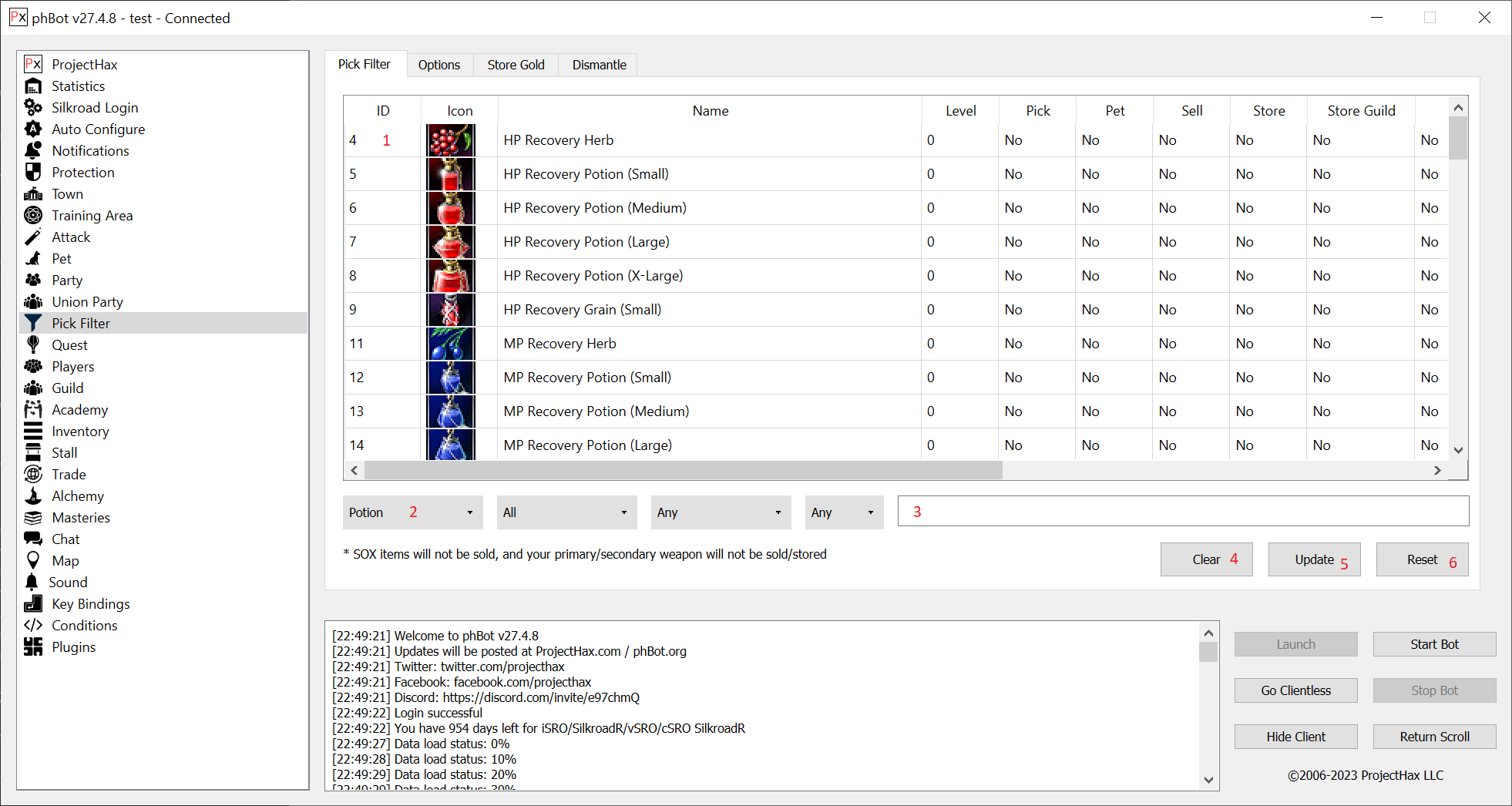
# Pick Filter
The "Pick Filter" tab or "item filter" allows you to pick, sell, store, store guild all items in the game. It can be configured to use the character to pick items or the pick pet if you have one.
1. Item list
* After searching or choosing a category you will see a list of items appear here. Right click on a group of items to set what you would like to do with the item.
* For "Gold" you will need to set it to pick up all three that you see in the list.
2. Categories
* The there combo boxes are used to locate specific item types so they can be more easily set instead of searching for item names.
3. Search box
* Enter an item name to search for and press enter.
4. Clear button
* Clears the window to free up some memory.
5. Update button
* Pressing this button will update the items in your pick filter. Your settings will be saved.
6. Reset button
* Resets your entire pick filter configuration. Do not click this unless you really need to.]
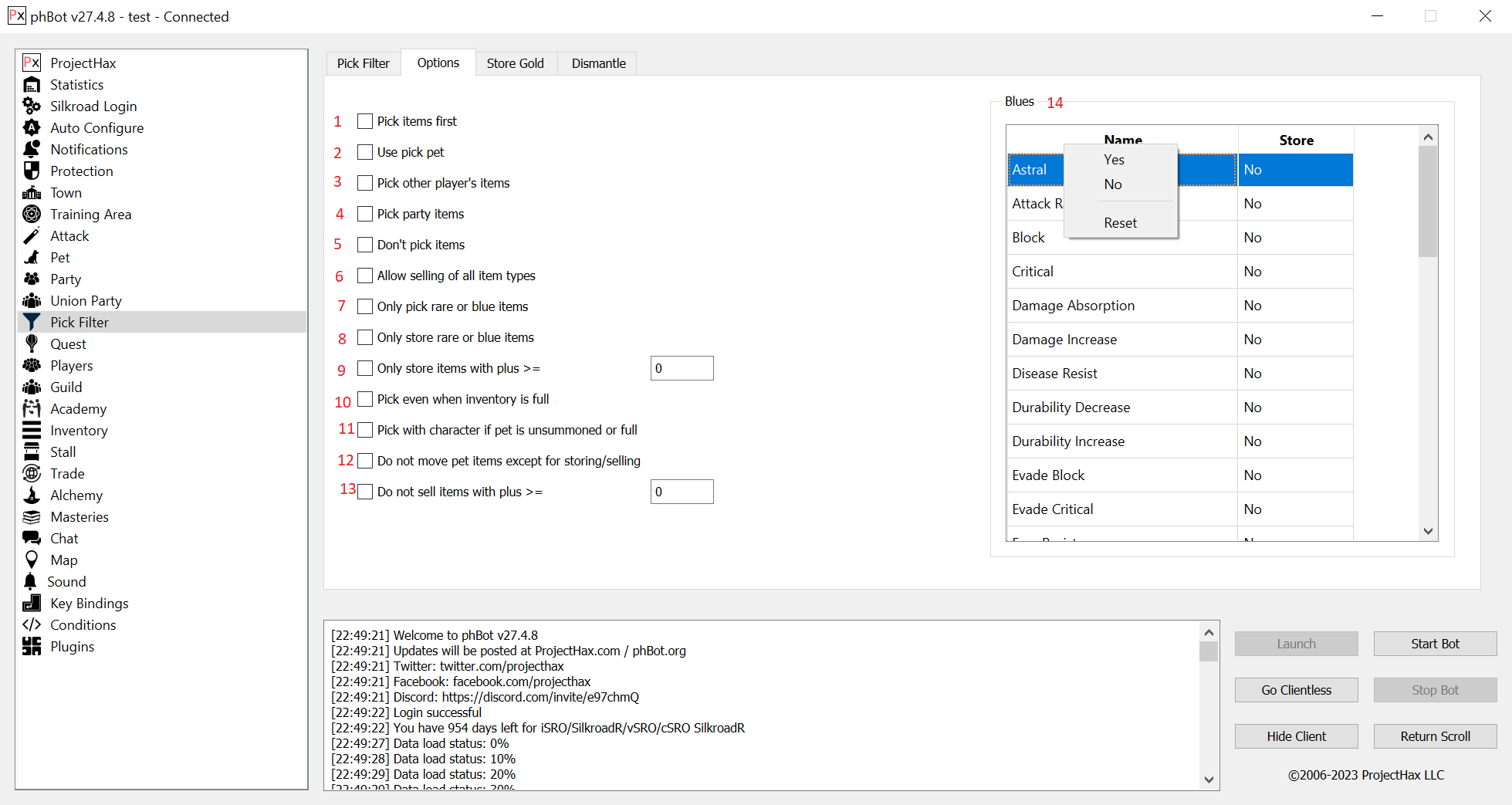
1. Pick items first
* If multiple monsters are attacking you and an item drops, pick it up before killing the other monsters.
2. Use pick pet
* Use a pick pet to pick up items intead of the character.
3. Pick other player's items
* If another players item drops and it becomes available for everyone to pick up, allow the bot to pick it up.
4. Pick party items
* If an item drops for a party member, pick up the item.
* This can be useful for parties with auto share items or having one player in the party pick up items.
5. Don't pick items
* Don't pick up any items regardless of what is configured in the pick filter.
6. Allow selling of all item types
* Allow the bot to sell rare items.
7. Only pick rare or blue items
* Only pick up rare or blue items that have dropped from a monster.
8. Only store rare or blue items
9. Pick Arrows/Bolts
* Pick up a specified amount of arrows/bolts
* The bot will determine which kind to pick up based on your character race.
10. Only store items with specific blue attributes
11. Pick with character if pet is unsummoned or full
12. Do not move pet items except for storing/selling
13. Do not sell items with plus >=
14. Blue attributes
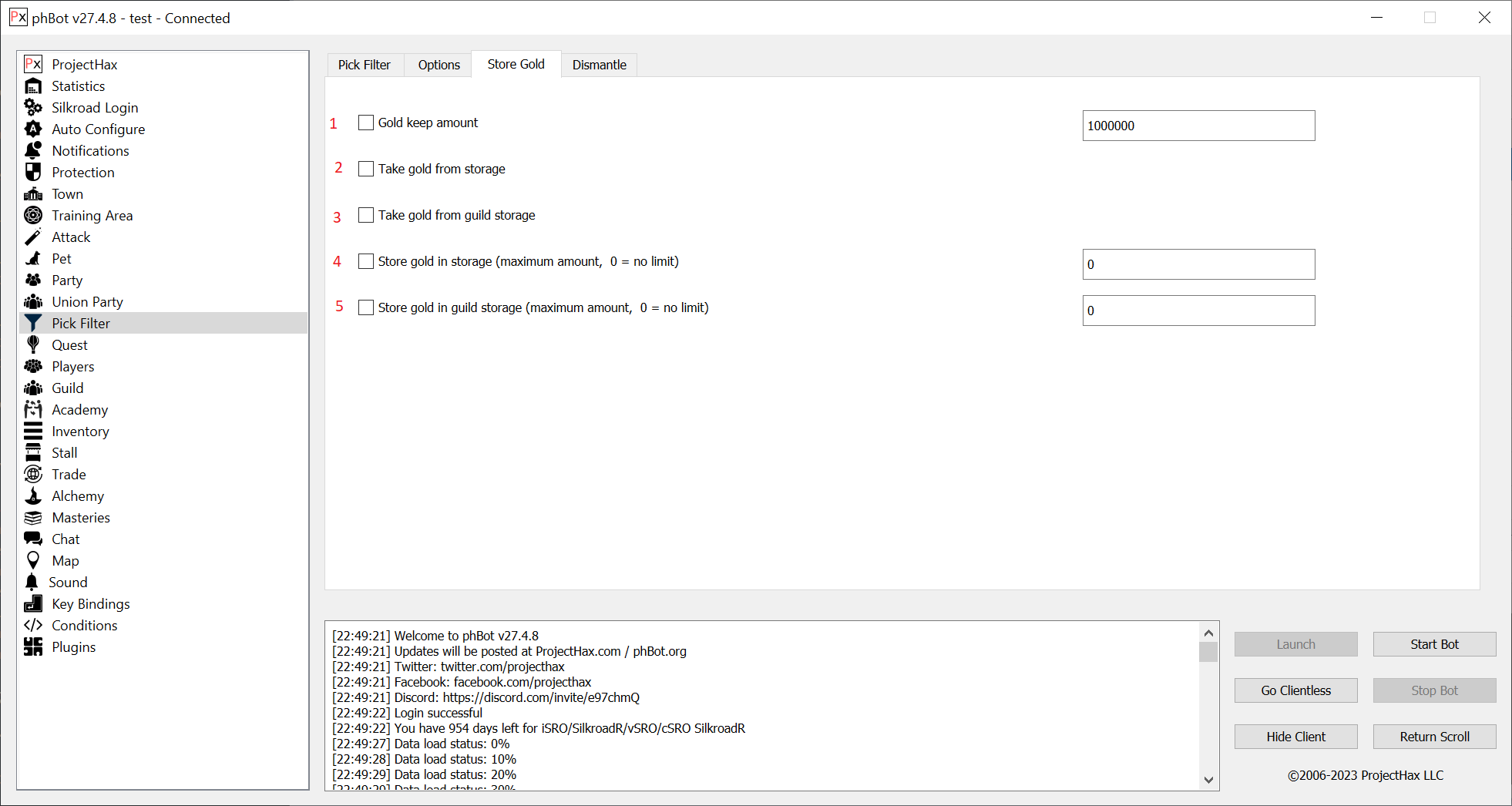
## Store Gold
1. Gold keep amount
* The amount of gold to keep in your inventory
2. Take gold from storage
* If you ever go below the "Gold keep amount", take gold from storage
3. Take gold from guild storage
* If you ever go below the "Gold keep amount", take gold from guild storage
4. Store gold in storage (maximum amount, 0 = no limit)
* The maximum amount of gold to have in storage. "0" for no limit.
5. Store gold in guild storage (maximum amount, 0 = no limit)
* The maximum amount of gold to have in guild storage. "0" for no limit.
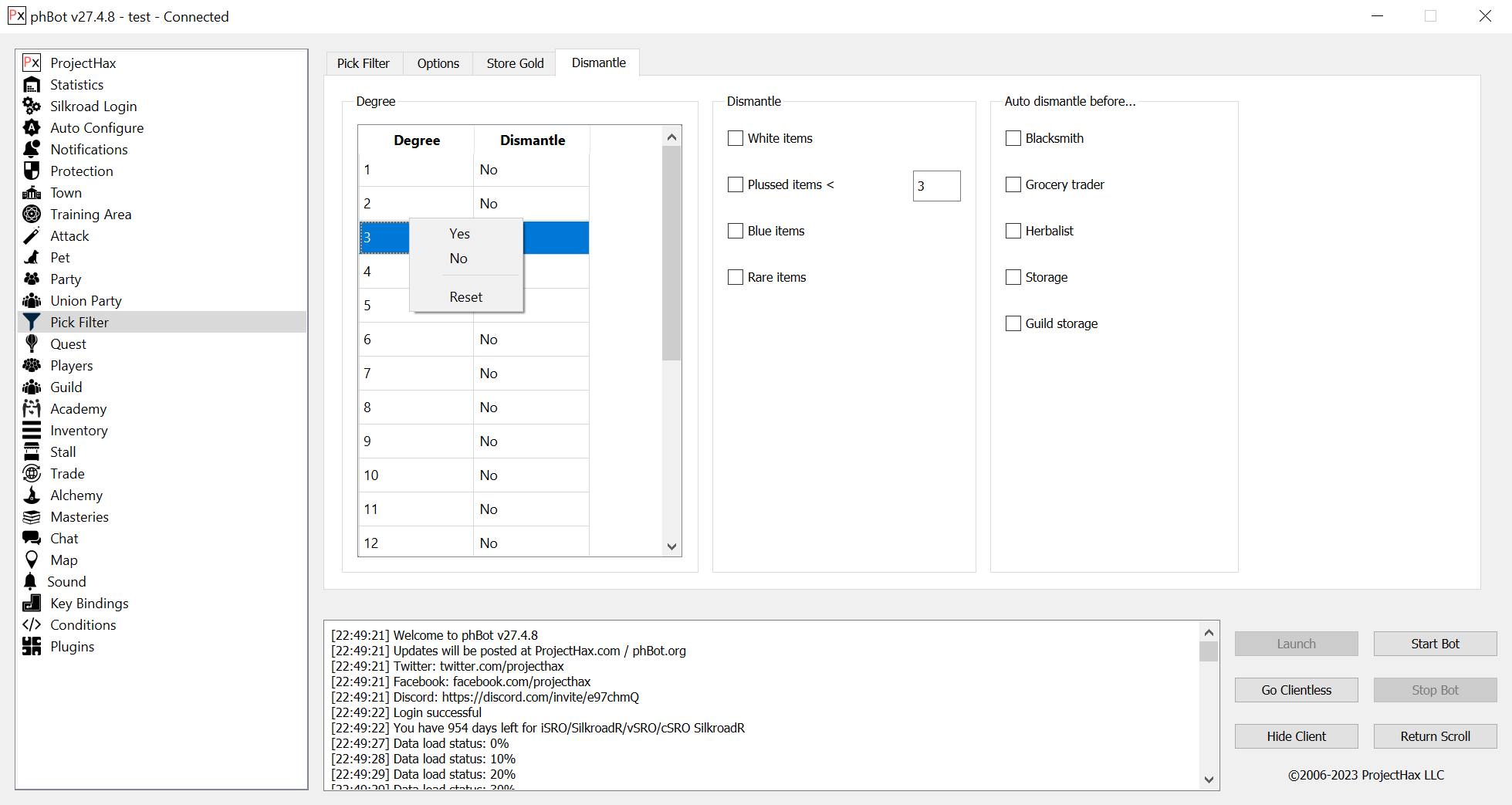
#### Dismantle
The "Dismantle" tab allows you to dismantle specific item degrees and types before a particular NPC.
# Quest
## Active
Here you will find a list of every quest that is currently active on your character. You can abandon the quest or configure the auto quest turn in options.
## All
On the `All` tab you will find a list of every quest in the game. This allows you to configure quests that are not active on your character.
1. List of quests
* Right click on a quest to enable it, use a return scroll when completed, or execute a script when completed.
* You should execute a script for job quests and use a return scroll for non job quest related NPCs that are in town.
2. Search box
* Enter a quest name and press enter to search for it.
3. Search button
* Enter a quest name into the search box and press enter or click the search button to search for it.
4. Clear button
* Clears the window to free up some memory
5. Update button
* Updates the quests. Your configuration will not be changed.
6. Reset button
* Resets your quest configuration. Do not press this button unless you absolutely need to.
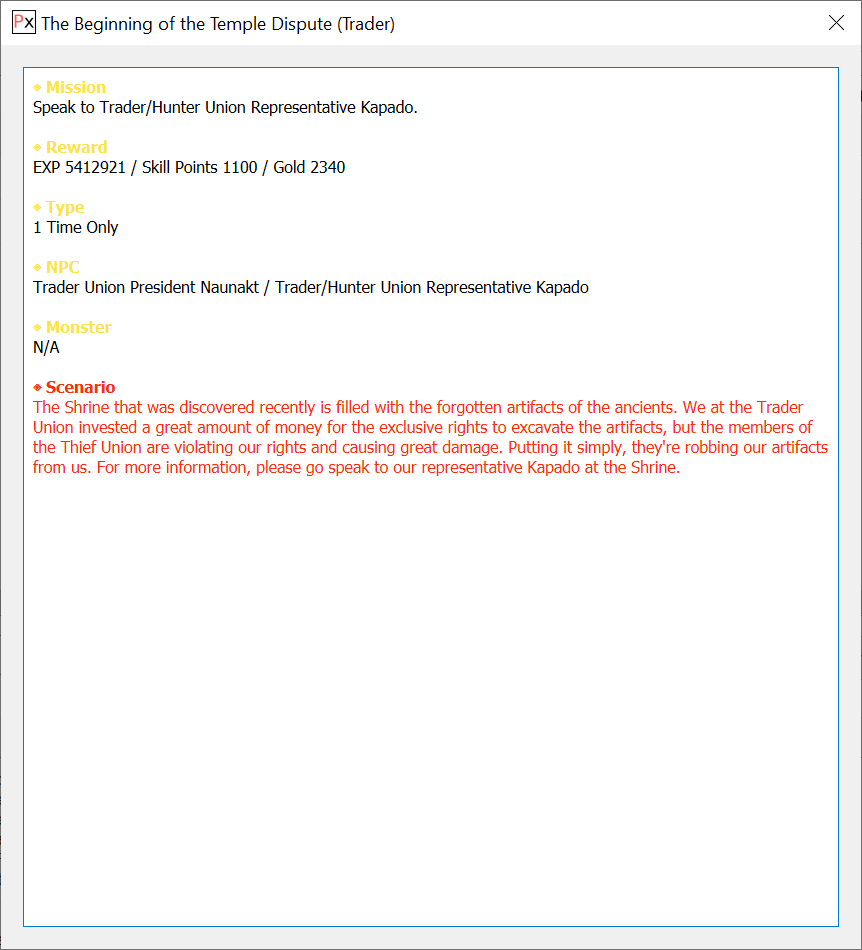
## View
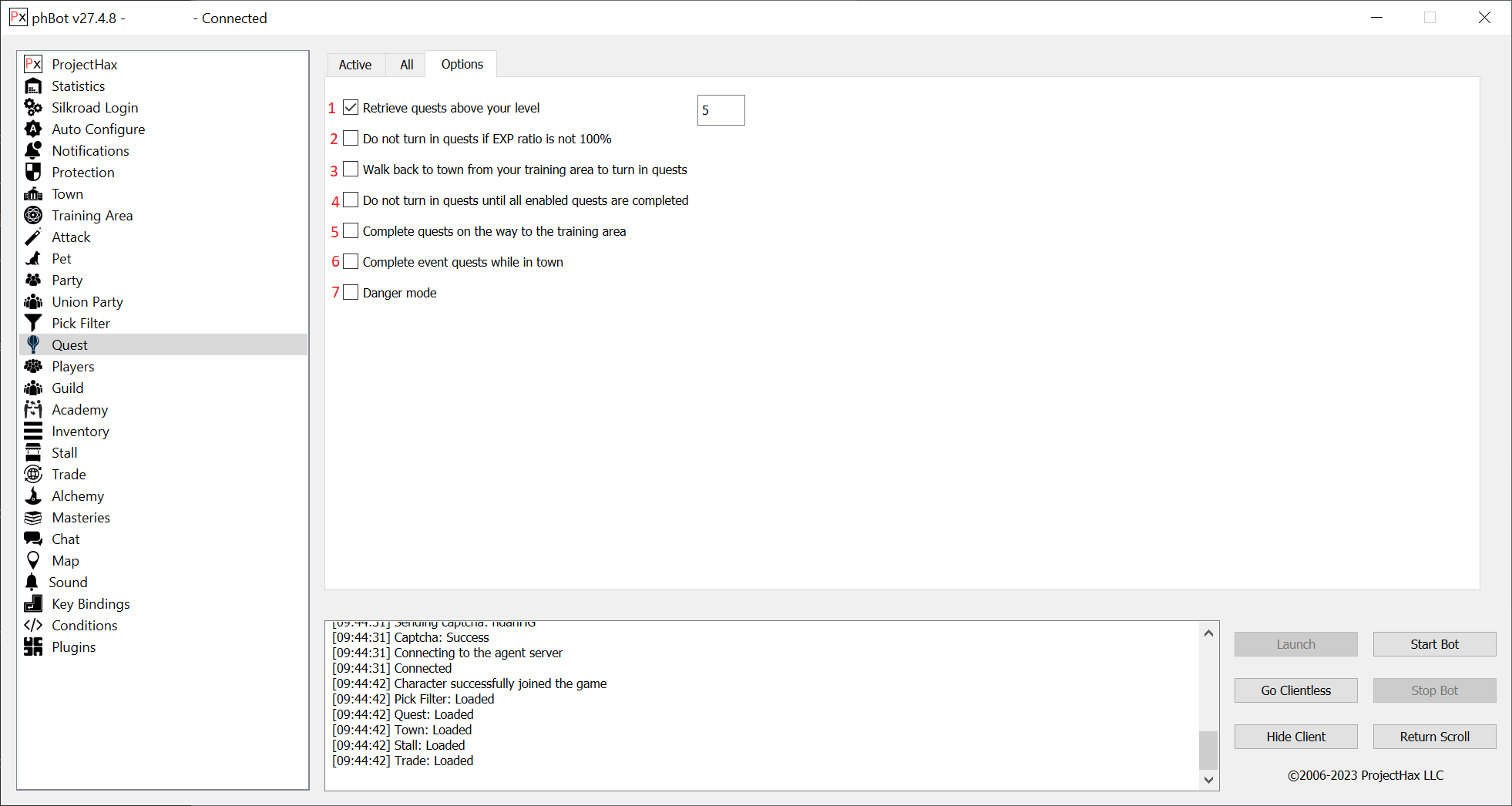
#### Options
1. Retrieve quests above your level
* Not all server types allow you to retrieve a quest above your current level so this option allows you to do that if allowed.
2. Do not turn in quests if EXP ratio is not 100%
* This option will not turn in a completed quest if the EXP ratio is not 100%. This only applies to iSRO based servers.
3. Walk back to town from your training area to turn in quests
4. Do not turn in quests until all enabled quests are completed
5. Complete quests on the way to the training area
* Turns in completed quests if the NPC is on the way to the training area. The character must walk near the NPC otherwise it will not turn the quest in.
6. Complete event quests while in town
* If enabled the bot will walk to the So-Ok event NPCs and turn in event quests while in town.
7. Danger mode
* Enables taking job trade quests in danger mode instead of safe mode.
## Auto Quest
Auto quest is done by enabling the quest and *not* setting a script.
1. Enable collision detection on the `Training Area` -> `Settings` tab
2. Enable the quest
3. If the quest requires you to return to town, enable the "Return" option for the quest
* Once you are in town, the bot will first look for quests that can be accepted/turned in and then the town script will follow.
4. If the quest NPC is in your training area, the bot will walk to it and turn it in if it's close enough (eg. job cave quest)
## **Genie Lamp**
In order to turn the quest in, you must start the bot in the town of the Daily Quest Manager NPC. If you do not, the bot will skip over the quest because the NPC is not in your starting town.
1. Enable the Daily Quest
* Set the quest to return when it is completed
2. Enable the Homeless Genie quest
## **Job Cave Quest**
1. Enable the quest
2. Start the bot in your training area
## Quest Script
This guide is for how you initially accept the quest.
1. Create a script that goes from town spawn to the quest NPC.
2. Add the `quest` command to the script.
3. If needed, add the `cast` command for "Merchant Pipe" (depends on the quest).
4. Walk to your training area.
5. If needed, add the `dismount` command.
6. Save the script and load it on the "Training Area" tab.
### Quest Return Script
This guide is for how you turn in the quest after it is completed.
1. Create a walk path that goes from your training area to the quest NPC.
2. Add the `quest` command to your script.
3. Set the script on the "Quest" tab and enable it.
The bot will execute this script in reverse after it finishes it, so there is no need to make it return to the training area.
# Players
The "Players" tab shows you a list of all players near you. It also has options for tracing other players in game.
1. Player list with all their items
* This window shows you every player nearby and the gear they are wearing.
2. Refresh button
* Refreshes the player window.
3. Clear button
* Clears the player window to free some memory.
4. Party Invite
* Invites a selected player to a party.
5. Academy Invite
* Invites a selected player to the academy.
6. Guild Invite
* Invites a selected player to your guild.
7. Union Party Invite
* Invites a selected player to a union party.
8. Player to trace
* The name of the player to trace.
9. Refresh button
* Refreshes the list of players around you.
10. Start tracing
* Starts tracing the chosen player.
11. Stop tracing
* Stops tracing the chosen player.
12. Attack monsters
* Attacks monsters while you are tracing the player
13. Kill all monsters before tracing
* This can be very useful for clearing out instances.
14. Buffs
* Cast buffs while tracing.
15. Party buffs
* Cast party buffs while tracing.
16. Pick items
* Pick up items while tracing.
17. Game trace
* Use the in game trace mechanism instead of walking to the players coordinates
# Guild
1. Shows a list of all guild members
2. Show guild invites
* Shows incoming guild invites in the bot.
3. Auto invite other players to the guild with level > X
* Invites other players near you to your guild if their estimated level is above what is specified.
* Player levels are not exact and are estimated based on the items they wear.
4. Accept all guild invites
* Accepts all incoming guild invites.
5. Notice View button
* Shows the current guild notice.
# Academy
The "Academy" tab allows you to completely manage your academy.
1. Shows a list of all players in the academy
2. Notice View button
* Displays the current academy notice.
## Options
1. Accept all academy invites
* Accept all incoming academy join invitations
2. Accept academy invites from the list
* Only accept academy invites if they come from a player that is in the "Accept / Invite" list.
3. Invite all players
* Invite all players near you to the academy.
4. Invite only from the list
* Invite only the players in the "Accept / Invite" list.
5. Show academy invites
* Show a dialog with the academy invite details in the bot.
6. Accept join invitations
* Enables accepting join invitations.
7. Invite players to the academy
* Enables inviting other players to the academy.
8. Auto graduate from the academy
* Auto graduates your character from the academy when you are level 40 and above as an apprentice, or level 60 and above as an assistant.
9. Refuse invites from players not in the list
* Denies invites from players not in the list
10. Graduate level
* Level an academy member must be before graduating them
11. Password
* Allows you to set a password a player must PM you with before they are accepted into the academy
12. Accept / Invite List
* The list the bot will use for accepting academy invites and sending out academy invites.
## Matching
1. Title
* The title to use when forming the academy matching.
2. Auto form academy matching
* Automatically forms the academy. It will reform every 10 minutes.
3. Allows you to choose the type of matching
4. View Matching
* View the academies in the matching system.
5. Join academy #
* Join an academy by its academy matching number.
6. Auto join matching by player name.
7. Auto join matching by title.
# Inventory
The "Inventory" tab allows you to see every single item in your inventory in great detail. It shows the item icons if your Silkroad path is set correctly and the white/blue stats. There are more options for exchanging job tickets and inflating event balloons.
## Exchange
The "Exchange" tab allows you to exchange other players and exchange items or gold.
1. Show requests
* Shows incoming exchange requests.
2. Players
* Shows nearby players.
3. Refresh
* Refreshes the player list.
4. Exchange
* Sends an exchange request to the selected player.
5. Inventory
* List of your inventory items.
6. Refresh
* Refreshes the inventory items.
7. Moves items to/from the exchange window.
8. Items being given to the other player.
9. Gold given to the other player.
10. Other player items you will receive.
11. Other player's gold you will receive.
12. Confirm
* Confirms the exchange.
13. Approve
* Approves the exchange.
14. Cancel
* Cancels the exchange.
## Job Tickets
This tab allows you to exchange job tickets and drop unwanted rewards.
## Item
This tab allows you to inflate balloons during the "Balloon" event on iSRO, and it allows you to plus your Devil's/Angel's spirit item using the Awakening Enhancement scroll.
## Gori Item Exchange
On iSRO and SilkroadR, the Magic POP Guide Gori NPC can exchange equippable items such as weapons or armor for one with random white/blue stats. This tab automates that process by stopping when a white stat you want is acheived.
# Stall
Stalling allows you to sell items to other players in the game. phBot makes it super easy to do this automatically.
* The stall tab will show you the current items in your stall and the prices they are set at.
* To change the item you can right click on the slot and select what you would like to do.
* When an item is sold it will appear in the log.
* The "Inventory" tab shows you every item in your inventory. Items are de-duplicated and the prices are saved in your config file, so if you reconnect the prices will still be the same.
* To enable automatic stalling on relog you must enable "start bot on login" on the "Silkroad Login" tab. Automatic stalling is done before town loop (this can be toggled).
* This tab should be used when you want to stall a specific item like an armor piece or weapon.
* The "Filter" tab shows you a list of all items in the game. This can be useful for automatically stalling items when you return to town to repair/rebuy items.
* The "Quantity" field allows you to set the amount the bot should sell at one time. The bot will automatically combine then split the items so they can be stalled individually.
* This tab should be used when you want to sell generic items like elixirs or global chatting items.
* The "Consignment" tab shows all of the items that are currently in consignment and their current status.
* To enable automatically adding items to consignment you must add the `DoConsignment` command to your town script or walk script.
* The `DoConsignment` command has the ability to settle, retrieve expired items, and add items.
* The "Options" tab gives you control over when the bot should stall based on how many items can be stalled. This can be set to "0" to always stall if there are items available.
# Alchemy
* The "Alchemy" tab allows you to easily improve your gear. It supports plussing items, using attribute/alchemic stones, and dismantling items to turn them into elements.
* To remove one item from the queue, right click it and click "Delete"
## Plus
Supports plussing regular items and using 12D+ enhancers.
1. Stop at
* Stop plussing when the item reaches a set plus.
2. Success delay
* Time to wait after a successful plus.
3. Failure delay
* Time to wait after a plus failure.
4. Lucky powder
* Use lucky powder at a set plus and above.
5. Astral
* Use Astral at a set plus and above.
6. Steady
* Use steady at a set plus and above.
7. Immortal
* Use an immortal stone at a set plus and above.
8. Lucky stone
* Use a lucky stone at a set plus and above.
9. Stop after attempt
* Stop plussing after a set attempt count.
10. Add all items
* Adds all items that can be plussed to the list
11. Add
* Adds the current item to the queue with the settings you have specified.
12. Cancel
* Cancels plussing the item.
13. Start
* Starts the alchemy queue
14. Item
* The current item you wish to add to the queue.
15. Plus
* The current items plus value.
16. Success rate
* The current plus success rate.
17. Auto (item degree)
* Certain private servers change the lucky powder / weapon degrees. This option allows you to manually set the weapon / lucky powder degree. It is used for all alchemy tabs.
18. Move on after plus failure
* Move on to the next item in the queue if the plus fails.
* This is only useful on certain private servers.
19. Stop all alchemy if destroyed
* Stop alchemy if the item is destroyed.
20. Alchemy queue list
* This windows will show you all of the items you have added to the queue.
* You can add multiple items and multiple types (plus, attribute, alchemic).
## Attribute
1. Attribute stone type
* The type of attribute stone to use on the item.
2. Stop at X %
* Stop when the white value reaches this percentage or exceeds it.
3. Use alchemy catalyst
* The bot is capable of using an alchemy catalyst with the stone.
* Alchemy catalyst's prevent stones from failing.
4. Add All Items
* Adds all inventory items to the queue for the selected stone.
5. Add All Stones
* Adds all attribute stones for this particular item with the value you set.
6. Add
* Adds the stone to the alchemy queue.
7. Cancel
* Cancels using attribute stones on the item.
8. Start
* Starts the alchemy queue.
## Alchemic
1. Alchemic stone type
* The type of alchemic stone to use on the item.
2. Stop at X value
* Stop when the blue value reaches this or exceeds it.
* The stop at value is NOT a percentage!
3. Use alchemy catalyst
* The bot is capable of using an alchemy catalyst with the stone.
* Alchemy catalyst's prevent stones from failing.
4. Add All Blues
* Adds all possible blue stones for the item to the queue.
5. Add All Items
* Adds all items in your inventory capable of using the stone you have selected.
6. Add
* Adds the stone to the alchemy queue.
7. Cancel
* Cancels using alchemic stones on the item.
8. Start
* Starts the alchemy queue.
## Dismantle
1. Add All Items
* Adds all of your inventory items into the queue to be dismantled into elements.
2. Add
* Adds one item that you have selected into the queue to be dismantled.
3. Cancel
* Cancels the alchemy queue.
4. Start
* Starts the alchemy queue.
## Disjoint
The "Disjoint" tab allows you to break down alchemy material into Wind, Earth, Fire, and Water elements.
## Shining Stone
The "Shining Stone" tab allows you to craft blue and black stones for job items.
## Tablet
The "Tablet" tab allows you to craft tablets from elements.
# Trade
The "Trade" tab allows you to configure the trade loop and have the bot automatically walk to different towns to earn gold..
## Loop
1. Start
* Starting town for the trade loop.
2. End
* End town for the trade loop.
* If you want to buy trade goods in Jangan then sell in Donwhang and rebuy in Donwhang then sell in Hotan your loop would look like this:
* Jangan -> Donwhang
* Donwhang -> Hotan
3. Transport
* Name of the transport to use for the trade.
4. Star
* Number of trade goods to buy. You can choose by start, quantity, or fill the transport.
5. Add
* Add the loop to the list.
6. Start
* Starts auto trade.
7. Stop
* Stops auto trade.
8. Shows the trade loop information.
## Items
1. Name of the item.
2. Enable the item for purchasing.
3. Quantity of the item to buy. This option would be used with the "Use quantity" option on the Loop tab.
## Options
1. Repeat trade loop
* Repeat the loop X number of items.
2. Loop count
3. Attack spawned thieves
* Attack thieves in a specified radius around the transport.
* In order for this option to work you must use "Stay off transport" or "Remount transport".
4. Attack radius
5. Use return scroll after loop completes
* This option can be used to loop the trade infinitely if you only specify a single loop.
6. Skip town loop
* Don't walk around the town to repair/purchase items.
7. Stay on transport
* Always stays on the transport and will not attack. You will need to have enough recovery kits to out-pot the attacks.
8. Stay off transport
* Always dismount the transport.
9. Remount transport
* If you are not being attacked, the bot will attempt to remount the transport.
# Mastery
The "Mastery" tab allows you to automatically level up masteries/skills when they become available and also keep a skill gap.
1. Skill tree
* This is a list of all masteries and skills for your character.
2. Gap
* A skill level gap allows you to gain more SP experience but less EXP. This is called farming.
3. Clear Auto Mastery
* Resets the auto mastery settings
4. Clear Auto Skill
* Resets the auto skill settings
# Map
[Download](https://forum.projecthax.com/t/latest-testing-release/24)
Assuming you have the minimap images inside the `minimap` folder you will be able to see the game from a top down perspective. Players, party members, and monsters are all shown on the map. There is a link to download these images inside the phBot release forum thread.
When you right click on the map a menu will appear with quite a few options. It allows you to:
1. Set the training area
2. Battle Arena
* Register for Styria
* Register for Random Flag
* Register for Random Points
* Register for Party Flag
* Register for Party Points
3. Access storage / guild storage
4. Use a teleporter
* Teleport
* Designate Recall Point
* Teleport to a Jupiter Room
5. Get all event quest rewards at So-Ok
1. General statistics.
2. Record Polygon
* phBot supports two training area types: radius and polygon.
* A polygon could technically be better but can be difficult to use since the map is not 100% accurate.
3. Stop Recording
* Stops recording the polygon
4. Clear
* Clears the polygon data
5. Your charcter.
Cave maps are supported.
#### Record Polygon
1. Click "Record Polygon".
2. Draw a polygon on the map in a clockwise manner.
3. Click "Stop Recording" once you have closed the polygon.
4. Go to the "Training Area" tab and right click on your active training area and select "Use Polygon".
You will still need to set the position on the "Training Area" tab for other features in the bot to work.
# Sound
The "Sound" tab allows you to have the bot play sounds when something happens in game.
1. GM spawned
* Play a sound when a GM spawns near you.
2. Unique spawned
* Play a sound when any unique notice appears or a unique spawns near you.
3. Titan spawned
* Play a sound when a titan monster has spawned near you.
4. Unique in range
* Play a sound when a unique has spawned near you.
5. Player died
* Play a sound when your character dies.
6. Attacking another player
* Play a sound when your character is attacking another player.
7. Returning to town
* Play a sound when your character returns to town.
8. Private message
* Play a sound when you receive a private message.
9. Attacked
* Play a sound when your character is attacked by another player.
10. Thief nearby
* Play a sound when a thief player spawns near you.
11. Hunter nearby
* Play a sound when a hunter player spawns near you.
12. Rare item drop
* Play a sound when you pick up a rare item.
13. Transport died
* Play a sound when your job transport dies.
Play a sound when a specific unique monster has spawned (based on the in game notice).
# Key Bindings
Key bindings allow you to start, stop, etc. multiple bots at the same time with a single key press.
1. Enable key bindings
* Enables the bot to watch for key inputs.
2. Start Bot
* Key binding for starting the bot.
3. Stop Bot
* Key binding for stopping the bot.
4. Start Trace
* Key binding for starting trace.
5. Stop Trace
* Key binding for stopping trace.
6. Get Position
* Key binding for getting the current position for the active training area.
* This can be useful for when you want to move an entire party to a new area.
7. Enable conditions
* Enables all conditions.
8. Disable conditions
* Disables all conditions.
9. Call Python
* Calls a Python function when you press the key binding.
10. Python function name
# Conditions
Conditions allow you to add custom functionality without the use of Python plugin; though they can be used together. These are separate from the "Training Conditions" and will execute whether the bot is started/stopped/tracing/stalling.
1. Select options from the `If` dropdown and click `Add`.
2. After you've added the conditions it is now time to add `Then` options. This is what the bot will do once your conditions are met.
* You may select multiple `Then` options. The order you select them in is the order they will execute.